
How to Import from Google Password Manager to Passary
Introduction
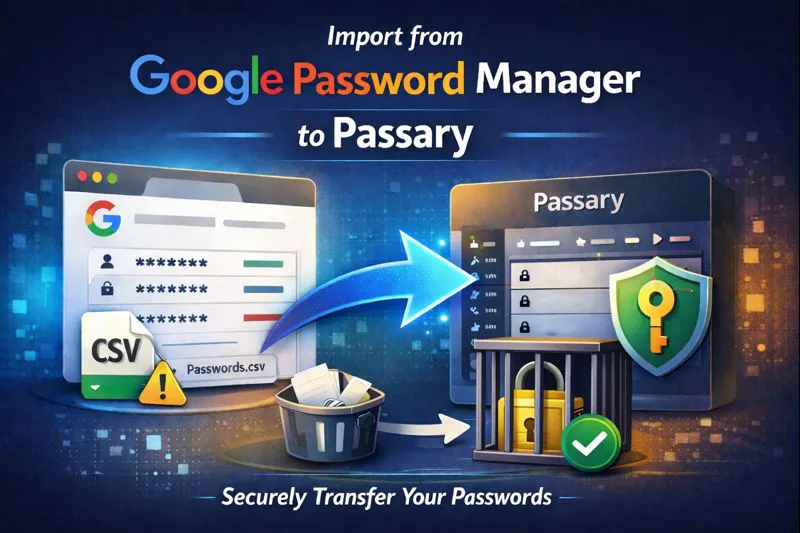
While Google Password Manager offers convenience for Chrome users, storing credentials directly in the browser introduces specific security trade-offs compared to dedicated offline vaults. This guide details the secure, step-by-step process of migrating your credentials from Google's ecosystem to Passary, ensuring you maintain full ownership of your data without exposing plain text passwords to the network.
TL;DR
Export your passwords from Chrome as a CSV, import them into Passary using the local-only import tool, and then immediately permanently delete the unencrypted CSV file. Passary handles all encryption client-side; your data is never uploaded to any server during this process.
Why Switch from Google Password Manager?
Google Password Manager is fundamentally a cloud-synchronized service tied to your Google Account. While convenient, this architecture presents distinct differences from offline password managers like Passary.
1. Browser Attack Surface
Browsers are complex pieces of software that execute untrusted code from the web constantly. Malware (such as "stealers") specifically targets browser data stores to extract cookies and saved credentials. By decoupling your vault from the browser, you reduce the risk of session hijacking tools accessing your core secrets.
2. Account Lockout Risk
Your Google passwords are tied to your Google identity. If your Google account is suspended, hacked, or locked due to an automated policy violation, you generally lose access to your saved passwords immediately. Passary operates independently of any identity provider; your vault key is mathematical, not administrative.
3. Data Sovereignty
When you use Google Password Manager, your keys are ultimately managed by Google to facilitate sync across devices. With Passary, the encryption keys are derived solely from your master password on your local device. The data is yours, and no third party—including Passary—has the technical ability to decrypt it.
Before You Begin (Prerequisites & Safety)
Handling potential plain text exports requires strict operational security. Please review this checklist before generating any export files.
⚠️ Security Warning: Plain Text CSV
- The export file (CSV) contains all your passwords in readable text.
- Do not email this file to yourself.
- Do not upload this file to cloud storage (Drive, Dropbox, iCloud).
- Do not leave this file in your "Downloads" folder after you finish.
- ✓ Use a Desktop Computer: We strongly recommend performing this migration on a secure desktop or laptop, where file deletion is more reliable than on mobile file systems.
- ✓ Close Unnecessary Apps: Ensure screen sharing or "clipboard manager" apps are not running.
- ✓ Do Not Edit the CSV: Opening the file in Excel or Numbers can change the formatting and break the import. Passary is designed to read the raw export directly from Chrome.
Step-by-Step Import Guide
Step 1: Export Passwords from Google
You can perform this export from the Chrome browser or the Google Password Manager website. The browser method is preferred as it keeps the file generation local.
- Open Google Chrome on your computer.
- Click the three dots menu (⋮) in the top-right corner.
- Navigate to Google Password Manager (sometimes under "Passwords and Autofill"). Alternatively, type
chrome://password-manager/settingsin the address bar. - Select Settings from the left sidebar.
- Locate the "Export passwords" section and click Download File.
- Authenticate: Windows, macOS, or Linux will ask for your system user password or biometrics to authorize the export.
- Save the File: Save the file as
Chrome Passwords.csvto a location you can easily control, such as your Desktop.
Step 2: Prepare Your Passary Vault
If you haven't already, ensure your Passary vault is open and decrypted.
- New Users: Go to passary.com/create to initialize a new local vault.
- Existing Users: Go to passary.com/unlock and decrypt your existing vault.
Once inside your vault, verify that you are in a secure environment (e.g., not on a public Wi-Fi network where someone might shoulder-surf, although the network itself cannot see your data).
Step 3: Import the CSV into Passary
This is where the migration happens. Passary will read the CSV file, map the fields to the secure vault format, and encrypt them in memory.
- Click the Settings (⚙️) icon in the Passary sidebar.
- Scroll to the "Import Data" section.
- Click the button labeled Import from Google Password Manager (CSV).
- A modal will appear confirming you are in Offline Mode (if applicable) and warning about the unencrypted file.
- Click Select CSV File and choose the
Chrome Passwords.csvfile you saved in Step 1. - Click Import.
Review the Results: Passary will display a summary:
- Imported: New items successfully added.
- Duplicates: Items skipped because they exactly matched an existing entry.
- Conflicts: Items with the same username/URL but a different password (imported as a new entry).
- Invalid: Rows that were malformed or missing critical data (like a URL).
Step 4: Secure Cleanup (Critical)
This is the most important step for maintaining your security posture.
- Verify your passwords are visible in Passary.
- Close the Passary import window.
- Navigate to the file location of
Chrome Passwords.csv. - Delete the file (Move to Trash/Recycle Bin).
- Empty the Trash/Recycle Bin immediately.
Advanced users on macOS/Linux may prefer using the `shred` or `rm -P` command to overwrite the file data on disk, though modern SSDs make secure deletion complex. Emptying the trash is the baseline requirement.
What Happens During the Import?
For the technically curious, it is vital to understand that this process is local-only. Here is the data flow:
- Browser File API: Your browser grants the Passary web application permission to read the specific file you selected. The file contents are loaded into the browser's temporary memory (RAM).
- Parsing: The CSV is parsed according to RFC 4180 standards. Passary looks for standard Google headers:
url,username,password,note,name. - Normalization: URLs are cleaned up.
http://google.com/loginmight be normalized tohttps://google.comto ensure better favicon matching and cleaner sorting. - Encryption: Before the data is "saved," it is encrypted using your vault's master key (AES-256-GCM).
- Persistence: The encrypted blob is saved to your browser's IndexedDB.
At no point is the raw CSV data transmitted over the network. You can verify this by inspecting the "Network" tab in your browser's Developer Tools during the import process.
Common Issues & Troubleshooting
"Unsupported CSV format" Error
This usually happens if the file was opened and saved in Excel, which often changes delimiters (commas vs semicolons) or encoding.
Fix: Export the file again from Chrome and do not open it. Import the fresh file directly.
Missing Passwords / Empty Rows
Google Password Manager sometimes saves "orphan" entries—passwords with no username, or usernames with no password. Passary requires at least a URL (or Name) and a secure field to create a valid entry.
Fix: Check the "Invalid (Skipped)" count. These are usually low-quality data fragments that you don't need.
Large File Freezing
If you have thousands of passwords (e.g., >5,000), the browser might pause for a few seconds while encrypting.
Fix: Wait for the "Import Complete" screen. Do not close the tab.
Security & Privacy Explained
Zero-Knowledge Architecture
Passary adheres to a strict zero-knowledge architecture. This means the application code running in your browser does not have the ability to send your plain text passwords to us, and we have no way to see them. The import tool is a utility that runs on your machine, not a service that runs on our servers.
Why Deleting the CSV Matters
A CSV export is the "Achilles' heel" of password management. It bypasses all encryption. If malware scans your computer, it will look for files named passwords.csv. By minimizing the time this file exists on your disk (the "time-to-live"), you significantly reduce your threat window.
FAQ
Can I re-import the file later?
Yes, but be careful. If you import the same file twice, Passary performs a duplicate check based on exact matches. However, if you changed a password in Google and re-import, it may import as a conflict (a second entry). It gets messy. We recommend doing one definitive migration.
What if I have multiple Google Accounts?
You can export CSVs from multiple Google accounts and import them one by one. Passary acts as a central repository, merging them into your single offline vault.
Does this work totally offline?
Yes. You can literally disconnect your computer from Wi-Fi / Ethernet before starting the import. Import the CSV, verify the data, delete the CSV, and then reconnect. This is the ultimate verification of our local-only promise.
Where is the vault stored?
Your vault is stored in the browser's secure storage (IndexedDB). It is encrypted at rest. For long-term backup, you should check our guide on backing up your vault securely.
Final Checklist
Did you complete these steps?
- ✓Exported
Chrome Passwords.csvfrom Google settings. - ✓Imported successfully into Passary.
- ✓Verified that a few critical login items work.
- ✓Deleted the CSV file from the computer.
- ✓Emptied the Trash / Recycle Bin.
Conclusion
Migrating to Passary is a significant upgrade to your personal security model. access to your credentials is no longer dependent on Google's cloud availability or your browser login state. You have moved from a convenience-first model to a security-first model.
Now that your passwords are secure, we recommend exploring how to manage your recovery options or learning more about why browser storage is vulnerable to understand the full value of the change you just made.