
More than passwords
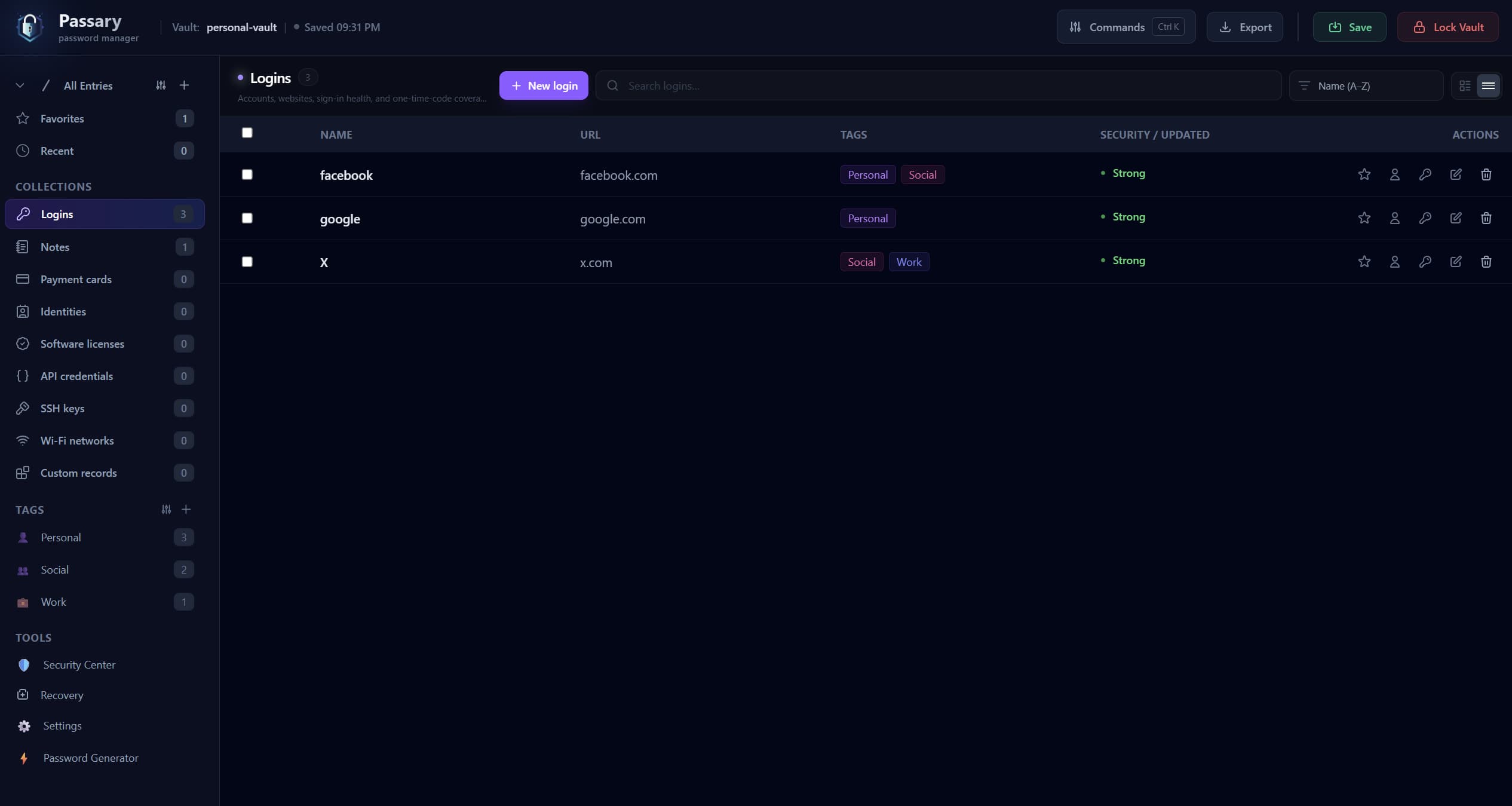
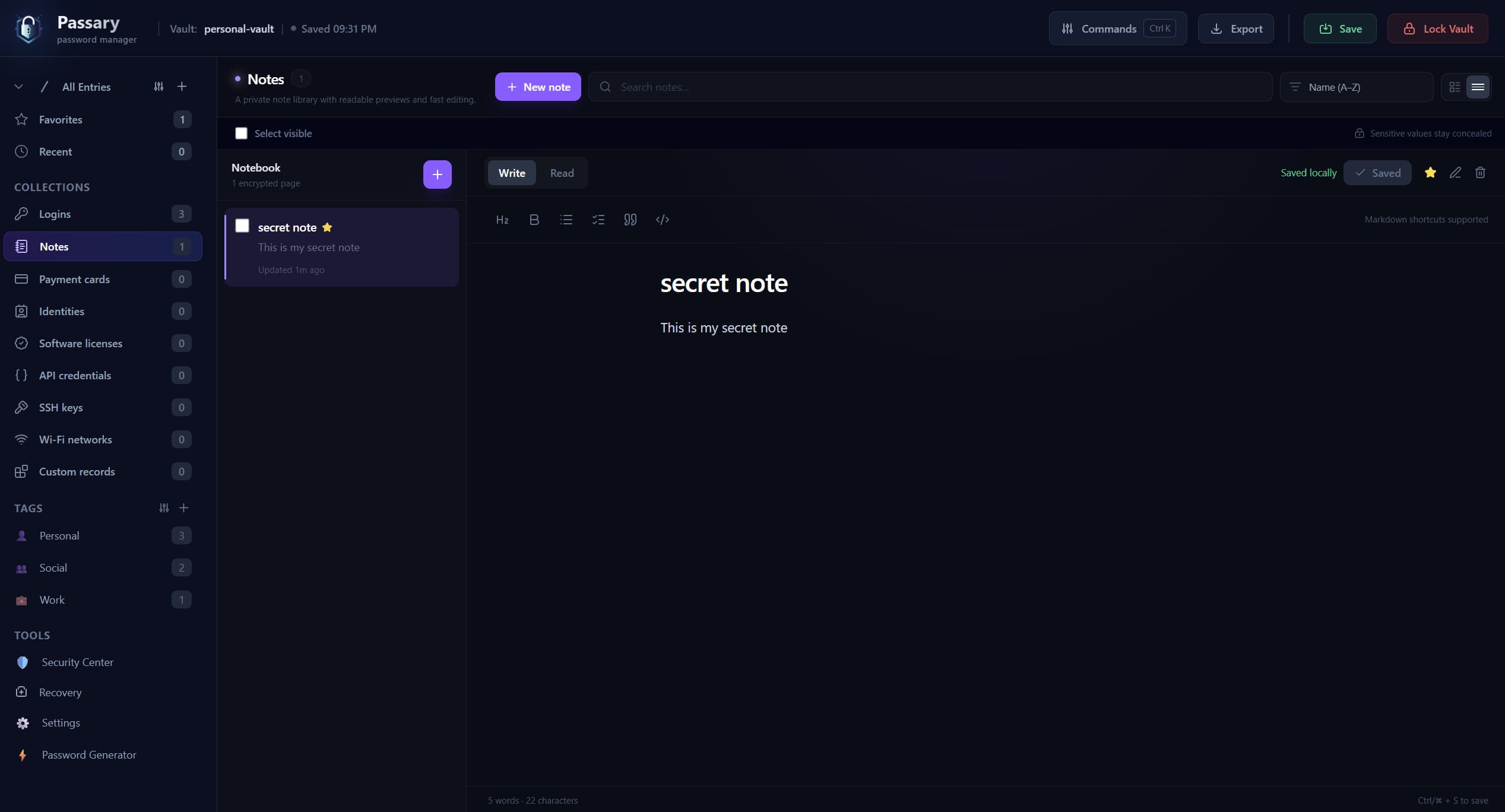
Keep logins, private notes, payment cards, and attachments in one encrypted vault. Add identities, keys, and other sensitive records when you need them.
Your passwords. Your control
Passary is a local-first password manager for saving and autofilling logins. Your encrypted vault stays on your device, so you stay in control without losing convenience.
Windows 10/11 · x64 · Unsigned preview. Release details
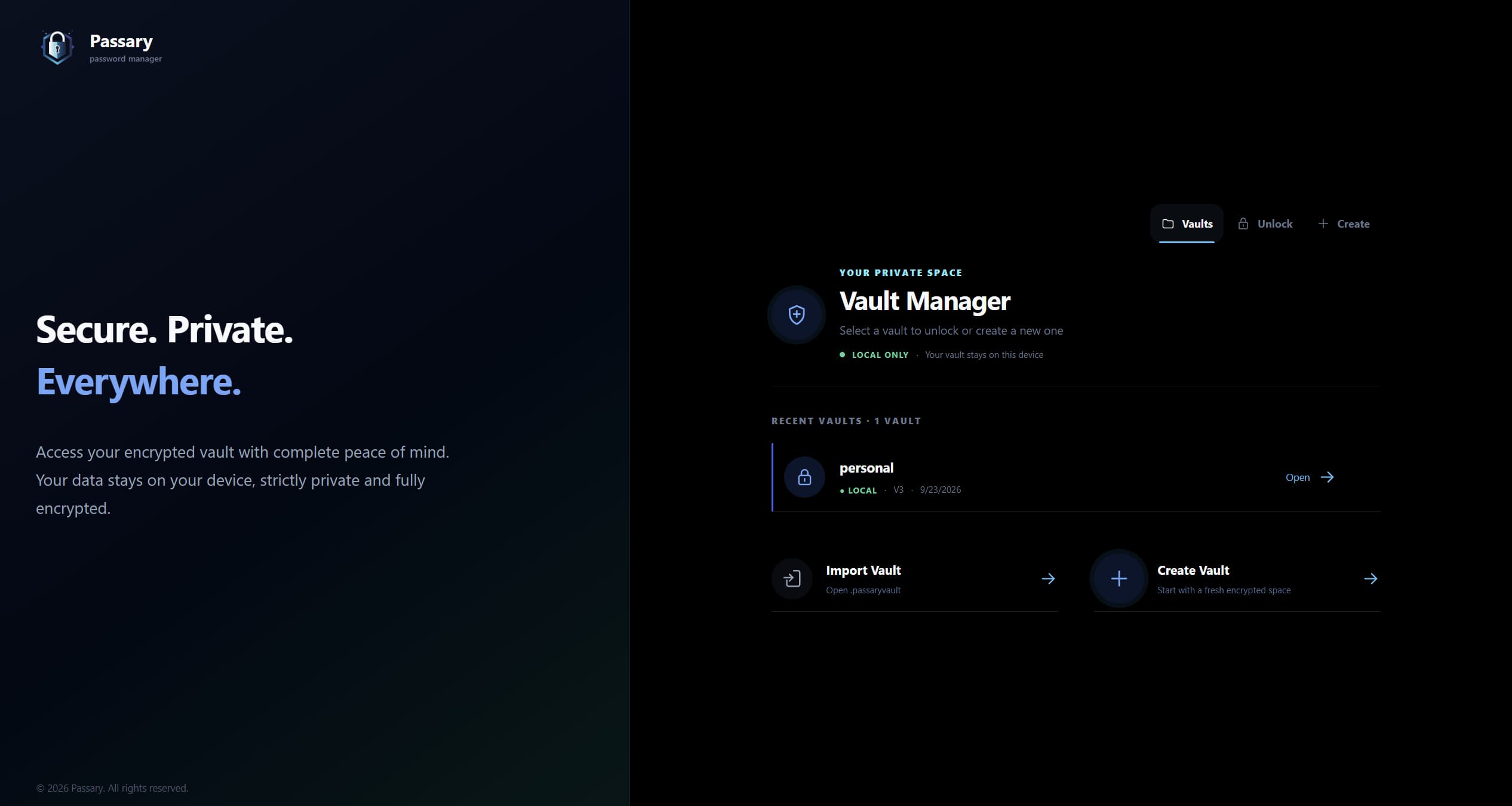
Your vault doesn’t need a home on our servers. Passary encrypts it locally, and you decide where to keep your copies.
.passaryvaultENCRYPTED FILEA storage model - not an automatic backup. Save and verify your copies.
Bring logins, private notes, cards, and other sensitive records into one encrypted vault you control. Organize and search them easily, autofill supported sites, review password health, and keep a backup where you choose.
Keep logins, private notes, payment cards, and attachments in one encrypted vault. Add identities, keys, and other sensitive records when you need them.
Fill supported websites from your unlocked vault with the Chrome or Firefox extension. You choose which browsers to pair and can revoke access.
Spot weak or reused passwords, duplicate entries, and expiring records. Jump straight to the items that need attention.
Organize records with folders, tags, and favorites. Search across record fields and use keyboard shortcuts for common actions.
Enable face, fingerprint, or device PIN unlock for a vault on Windows. Your master password remains the fallback.
Export an encrypted copy and create a recovery kit. Keep a verified backup separate from your device, ready if you need it.
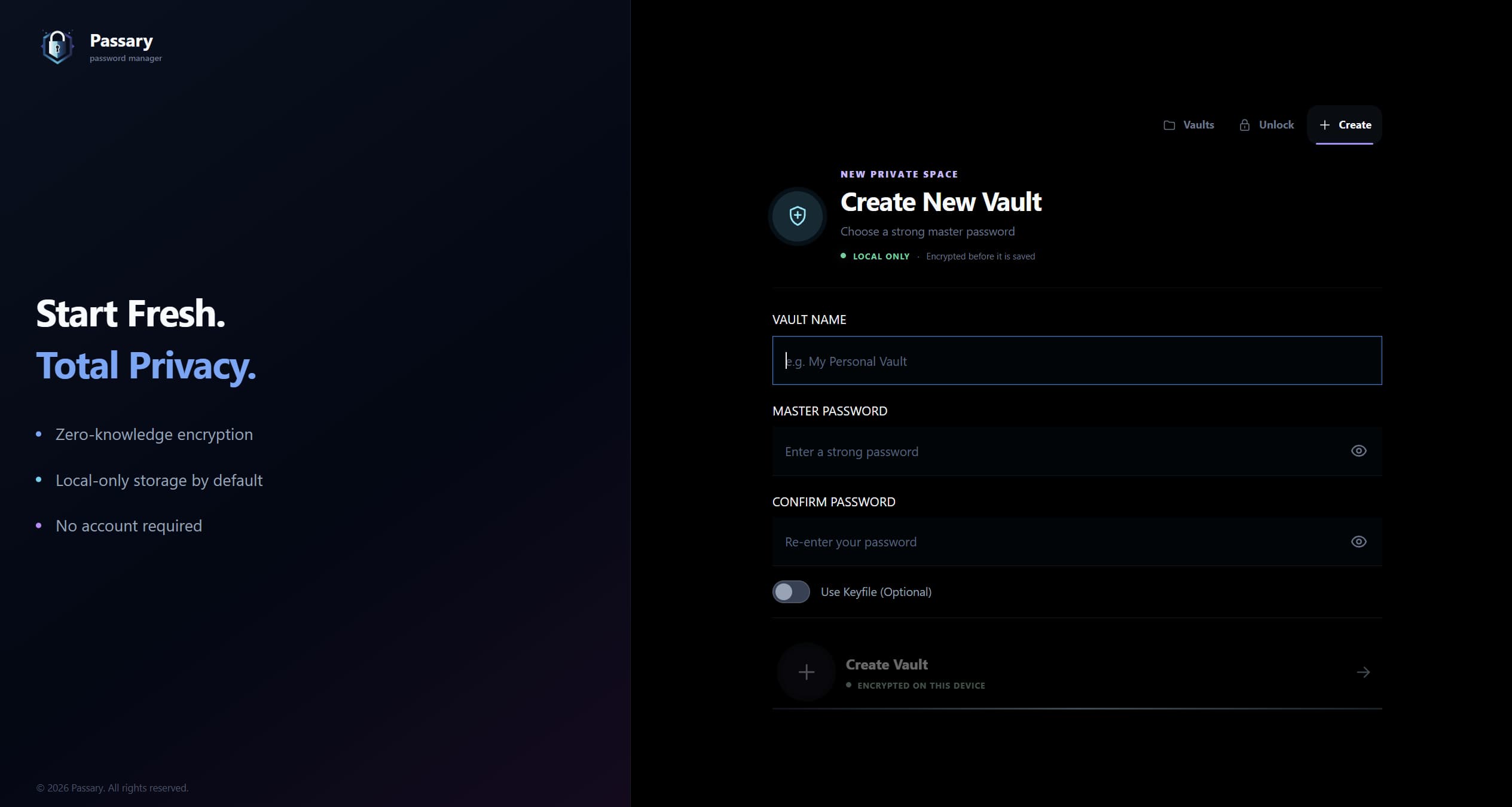
Create a vault, add your records, and set up an encrypted backup.
Install Passary for Windows or open the web app in a modern browser.
Start fresh, open an existing .passaryvault file, or import supported data from KeePass, Bitwarden, or Google Password Manager.
Your master password and optional keyfile unlock the vault on your device. Lock the vault when you finish.
Add records, enable optional browser autofill, and save an encrypted backup on separate storage.
You don’t have to start from scratch. Bring supported records from your current manager into Passary. Imports are processed on your device.
Keep your original database until you have checked your imported records. Protect exported files: some formats contain unencrypted passwords.
KDBX 3 and 4, including supported folders, history, custom fields, TOTP, and attachments
Rich records, URLs, TOTP values, custom fields, and supported attachments
Move exported browser passwords into an encrypted local vault
Your vault stays under your control, but strong security still depends on how you use it. Passary encrypts your data locally; trusted devices, strong credentials, and verified backups complete the picture.
Install the Windows app for everyday use, or explore Passary in your browser. The same vault format works in both.
Keep your encrypted vault file on your PC. Unlock with Windows Hello, manage backups, and connect browser extensions when you choose.
Create a test vault and get a feel for Passary. No account, download, or provider-hosted vault.
Your browser stores the encrypted snapshot. Export a backup before clearing site data.
Storage, recovery, compatibility, and release status.
No. Passary does not operate a provider vault for your data. The Windows app uses encrypted files you control; the web app stores its encrypted snapshot in your browser unless you explicitly export or configure another destination.
Passary cannot reset it or decrypt the vault for you. Windows Hello can make routine unlocks easier after enrollment, but your master password and any required keyfile remain the durable credentials. Create and verify a recovery plan.
Yes. The current apps share the V3 vault format. You can export or move an encrypted .passaryvault file and open it in the other app. Keep a backup before migrations or major changes.
Yes. Passary has Chrome and Firefox extension builds that pair with an unlocked local vault for supported fill, save, update, and TOTP workflows. Public store distribution is still moving through external review and signing steps.
There is no mandatory Passary account sync. You can move encrypted vault files yourself or configure one of the explicit encrypted sync destinations available in the app. You remain responsible for the destination and recovery.
Passary is available as a free preview under active development. Signed distribution, extension store availability, and additional platform support are in progress. See the release notes for current availability and limitations.
Passary suits people who want control over their vault files and are comfortable keeping backups. If you need provider-assisted recovery, managed family or team administration, or automatic sync everywhere without file handling, consider whether a managed service better fits your needs.
Start with a test vault. Add a few records. See what keeping control of your passwords feels like.