
What Is an Offline Password Manager and How Does It Work?

An offline password manager is a secure tool that stores all your passwords in an encrypted vault that exists only on your device rather than in the cloud. Instead of relying on remote servers, syncing services, or online backup systems, an offline password manager keeps your sensitive information fully local. This approach appeals to users who want maximum control over their data, reduced exposure to online threats, and a security model that avoids external dependencies.
Offline password managers function by encrypting your vault using a master password or passphrase that only you know. Because the vault never leaves your device unless you manually move or back it up, no third party can access or intercept it. This design simplifies the threat landscape: attackers must target your device directly instead of attempting cloud-based attacks, credential stuffing, or remote data breaches.
While cloud-based managers are convenient, offline tools offer a distinct advantage for people who prioritize privacy, autonomy, and strict security governance. They are commonly used by privacy-conscious individuals, professionals in sensitive industries, and users who prefer local-first technology. However, this independence comes with added responsibility — you must handle backups, syncing, and vault recovery on your own.
Understanding how offline password managers work, their strengths and weaknesses, and how to maintain them properly can help you decide whether they are the right choice for your security setup. The sections below break down their mechanics, benefits, limitations, and best practices in practical, easy-to-follow terms.
What is an offline password manager and why does it matter today?
An offline password manager is a security tool that stores your login credentials in an encrypted vault located entirely on your device instead of on remote servers. This means no automated cloud syncing, no remote storage, and no third-party access. As cybersecurity threats grow and data breaches occur more often, keeping passwords offline has become an important alternative for people who want stronger control over their digital security.

The core purpose of an offline password manager is to reduce external attack surfaces. Cloud-based services—while convenient—can be targeted through server breaches, account takeovers, or sync-related vulnerabilities. Offline tools remove these risks by keeping your encrypted vault local and accessible only through your master password. This design appeals to users who want privacy-first solutions or work in industries with strict compliance requirements.
Another reason offline password managers matter today is the rise of privacy concerns. Many users want tools that leave no digital footprint on external infrastructure. Since offline managers operate without telemetry or cloud accounts, they provide a level of independence not available with online services. This helps users build a security model tailored to their own threat landscape.
Offline password managers also support long-term reliability. Because they don't depend on paid subscriptions or cloud company servers, your data remains accessible even if a service shuts down, changes ownership, or modifies its business model. For people who want durable, predictable access to their credentials, local storage can be a safer long-term solution.
| Feature / Purpose | Offline Password Manager | Cloud-Based Password Manager |
|---|---|---|
| Storage Location | Local device only | Remote servers + local apps |
| Attack Surface | Limited to device | Includes cloud infrastructure |
| Syncing | Manual | Automatic |
| Privacy Level | Very high (no cloud footprint) | Depends on provider policies |
| Service Dependency | None | Requires provider availability |
How does an offline password manager work from a technical perspective?
An offline password manager works by encrypting all your stored passwords inside a local vault file that never leaves your device unless you manually move it. When you create your vault, the software uses modern encryption algorithms—typically AES-256 combined with PBKDF2, Argon2, or scrypt—to convert your data into unreadable ciphertext. Only your master password can generate the decryption key, which means the software itself cannot view or recover your data without your input.
At the heart of this process is key derivation. Instead of storing your master password, the manager processes it through a key-stretching function to produce a cryptographically strong key. This prevents brute-force attacks by making each password-guessing attempt computationally expensive. Offline password managers typically include configuration options for iteration counts or memory usage, which further hardens the vault against attacks.
When you access your vault, the manager decrypts the necessary information in memory only, keeping the main vault file encrypted on disk at all times. This limits exposure, since decrypted passwords exist only temporarily while you're using them. Once you lock the vault or close the app, all plaintext data is wiped from memory. The local-only architecture means that no network calls are made during usage, minimizing the chance of credential leaks.
Because there's no cloud component, syncing occurs only when you choose to move or copy your vault to another device. This can be done via USB drive, encrypted external storage, or secure local network transfer. Some users pair offline password managers with hardware-encrypted devices to add another protection layer. This manual approach reinforces the security model: nothing leaves your device without deliberate action.
Master Password Creation
You generate one strong master password (or passphrase) that acts as the only key to your vault. This password is never stored or sent anywhere.
Key Derivation
The software transforms your password into a cryptographically strong encryption key using algorithms like Argon2 or PBKDF2 to resist brute-force attacks.
Vault Encryption
All data is encrypted with AES-256 or ChaCha20 and stored as a file on your local disk. It remains unreadable without the key.
Local Decryption
When you open the vault, data is decrypted only in your device's memory (RAM). The file on the disk remains encrypted at all times.
Zero-Knowledge
Because the process is entirely local, it adheres to zero-knowledge principles—no one else can ever see your data.
| Stage | What Happens | Security Benefit |
|---|---|---|
| Key Derivation | Converts master password into encryption key | Prevents brute-force attacks |
| Vault Encryption | Passwords stored locally as encrypted data | Eliminates cloud exposure |
| Local-Only Access | Decryption occurs temporarily in RAM | Reduces persistent plaintext risk |
| Manual Syncing | User copies vault manually | User controls all movement of data |
| No Network Calls | App operates offline | Minimizes attack surface |
What are the main benefits of using an offline password manager compared to cloud-based tools?
An offline password manager provides several key advantages for users who prioritize privacy, control, and a reduced attack surface. Because vault data never leaves your device, your passwords are not exposed to common cloud risks such as provider breaches, account takeovers, or server misconfigurations. This local-first approach creates a simpler, more predictable security model.
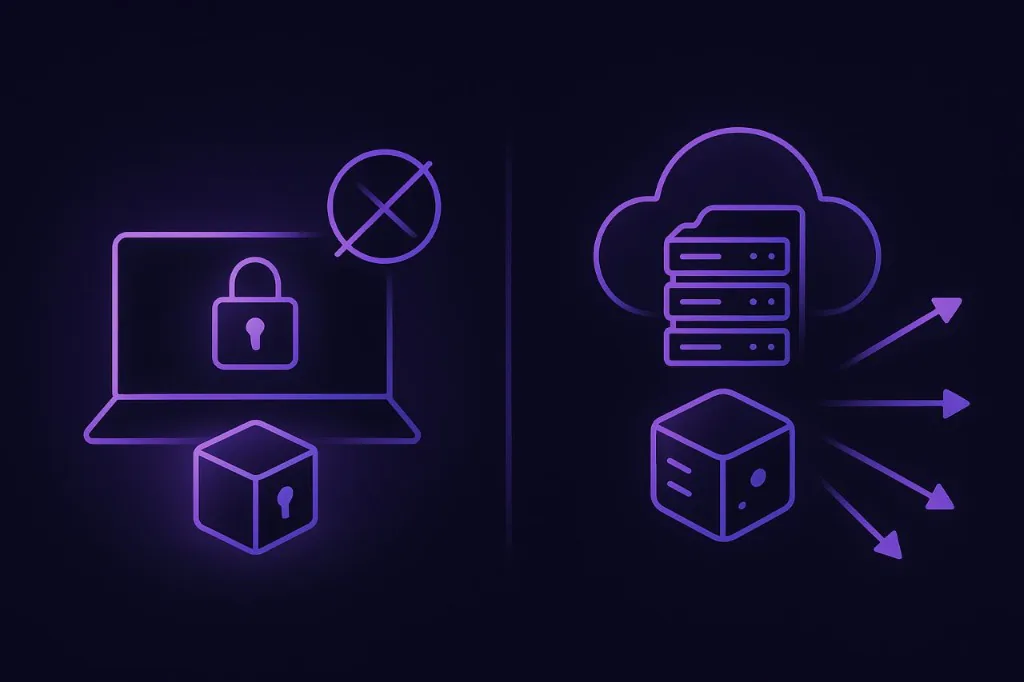
One major benefit is data sovereignty. With an offline password manager, you own your vault entirely—there is no dependency on remote infrastructure, subscription systems, or corporate policies. If an online provider changes ownership, experiences downtime, or shuts down, your local vault remains accessible. This long-term independence is valuable for users who want consistent access to their credentials without relying on third parties.
Another advantage is minimal metadata exposure. Cloud services often log device information, sync events, or user activity to sustain their service operations. Offline tools avoid this by staying fully disconnected, leaving no external footprint. For people with strict privacy expectations, this creates clearer boundaries and significantly reduces passive information leakage.
Offline password managers also reduce the overall attack surface. With cloud-based tools, attackers can target servers, APIs, or authentication systems to compromise user data at scale. By keeping credentials offline, threats become limited to direct access to your device, which is easier to control through encryption, device hardening, and physical security.
No Cloud Breaches
Since your data is never stored on a provider's server, you are immune to massive cloud data breaches or server-side exploits.
Total Sovereignty
You don't depend on a company's survival. Even if the vendor disappears, your local software and vault file keep working indefinitely.
Zero Metadata Leaks
Online tools track IP addresses, login times, and device types. Offline managers leave no digital footprint outside your device.
Reduced Attack Surface
Attackers must physically possess your device or compromise it directly with malware, which is much harder than targeting a central cloud API.
What are the limitations or risks of choosing an offline password manager?
An offline password manager offers strong privacy and control, but it also comes with trade-offs that users should understand before adopting it. Because the vault is stored locally, there is no built-in backup or recovery mechanism. If your device fails, is lost, or becomes inaccessible, the vault could be permanently lost unless you created manual backups. This makes personal responsibility a core part of the security model.
Another limitation is the lack of automatic syncing across devices. Cloud-based managers sync changes in real time, but offline tools require you to manually copy or transfer the vault when you want to use it on another device. For users with multiple devices—or those who update passwords frequently—manual syncing can feel slow or cumbersome. It also introduces the risk of outdated vault copies if syncing is forgotten.
Ease of use can also be a challenge. While many offline password managers are designed to be user-friendly, the absence of automation means more steps for the user: backing up, transferring vaults, and verifying integrity. Some users may overlook these tasks, creating security gaps or losing access to updated credentials. Convenience is often the reason many users choose cloud tools instead.
Offline password managers place most of the security responsibility on the user. If your master password is weak, forgotten, or written down insecurely, there is no recovery mechanism through customer support. This is a powerful security feature—but also a risk for anyone unprepared for the consequences. A forgotten master password typically means permanent loss of the vault.
| Limitation / Risk | Explanation | User Impact |
|---|---|---|
| No automatic backups | Backups must be created manually | Possible permanent data loss |
| No automatic syncing | Vault must be moved manually | Inconsistent or outdated vault versions |
| User-dependent security | Weak or forgotten master password is unrecoverable | Permanent lockout |
| Higher maintenance | Users must handle updates, backups, and device safety | More hands-on workload |
| Physical device risk | Theft, failure, or damage affects vault access | Requires strong device protection |
✅ It makes sense if...
- You require absolute control over your data.
- You work in high-security or air-gapped environments.
- You want to avoid monthly subscriptions and cloud reliance.
- You are comfortable managing your own backups.
- You prioritize privacy above cross-device convenience.
❌ It may not be for you if...
- You need seamless, instant sync across many devices.
- You frequently share passwords with a team or family.
- You are worried about losing your master password (no reset).
- You find file management and manual backups difficult.
Finally, offline password managers are a strong choice for individuals or organizations that maintain isolated or air-gapped systems. In environments where devices intentionally have no internet connection—such as secure research labs, internal servers, or high-security workstations—offline tools provide a practical way to manage credentials securely without exposing systems to the web.
What platforms and device types typically support an offline password manager?
An offline password manager is usually designed to run on a wide range of platforms so users can store and access their encrypted vault locally on whichever devices they prefer. Most modern offline managers offer full-featured desktop applications for Windows, macOS, and Linux because these environments give users more control over local storage, file permissions, and backup workflows. Desktop platforms also make it easier to manage large vaults and perform secure manual syncing between systems.
Mobile support is increasingly common as well. Many offline password managers provide Android and iOS apps that store the vault directly on the device without any cloud dependency. These apps often include biometric unlocking, offline autofill, and built-in encryption to maintain local-only security while still offering convenience. Mobile versions tend to restrict background networking to ensure the vault never syncs automatically.
Some offline password managers also support portable modes, allowing the entire application and encrypted vault to run from a USB flash drive or hardware-encrypted external SSD. This is useful for people who work on shared or air-gapped machines and need a secure, transportable vault that leaves no trace on the host computer. Portable versions typically include hardened settings that prevent temporary data from being written to the device.
For users who operate in high-security environments, offline password managers may run on isolated or air-gapped systems. These scenarios often involve Linux-based workstations or custom OS builds where cloud access is intentionally disabled. A local-only password manager fits naturally in these environments because it aligns with strict security policies and prevents any data from leaving the internal network.
Because support varies across tools, understanding platform compatibility helps users choose a manager that fits their workflow. The table below summarizes the most common platform support found across offline password managers:
| Platform / Device Type | Support Level | Notes |
|---|---|---|
| Windows (Desktop) | Strong support | Full-featured apps, manual vault management |
| macOS (Desktop) | Strong support | Local vault storage, biometric unlock options |
| Linux (Desktop) | Widely supported | Popular among technical and security users |
| Android (Mobile) | Common | Offline autofill, local-only storage |
| iOS (Mobile) | Common | On-device encryption, biometric unlocking |
| Portable USB Mode | Variable | Useful for air-gapped or shared systems |
How do you choose the right offline password manager based on security and usability criteria?
Choosing the right offline password manager starts with evaluating its security foundation. A reliable tool should use modern, peer-reviewed encryption standards such as AES-256 and secure key derivation functions like Argon2 or PBKDF2. Open-source software is often preferred because its code can be audited publicly, increasing transparency and trust. The manager should also store all sensitive data locally and avoid making network connections unless explicitly configured by the user.
Usability is another essential factor. Even the most secure password manager becomes ineffective if it is difficult to use or maintain. Look for features such as intuitive interfaces, smooth autofill on desktop and mobile platforms, and straightforward vault management. A clean design helps reduce mistakes, especially when adding, editing, or searching for credentials. Accessibility also matters—features like biometric unlock, dark mode, and keyboard shortcuts can improve the day-to-day experience.
Backup handling is equally important. A good offline password manager should provide clear tools for exporting encrypted backups, verifying file integrity, and restoring vaults. Since users are responsible for their own backups, the app must make these processes simple and reliable. Ideally, it should support incremental or timestamped backups to prevent accidental overwrite and ensure you can recover from device failure or lost vaults.
Compatibility across devices helps ensure your workflow stays consistent. Even though syncing is manual, choosing a tool that runs on your operating systems—Windows, macOS, Linux, Android, or iOS—prevents future frustrations. Cross-platform vault formats are especially useful because they allow you to move or restore your data on any of your devices over time without conversion.
| Criterion | Why It Matters | What to Look For |
|---|---|---|
| Encryption Strength | Protects vault confidentiality | AES-256, Argon2/PBKDF2/scrypt |
| Open-Source Audits | Verifies security claims | Public codebase, active audits |
| Ease of Use | Reduces errors and friction | Intuitive UI, reliable autofill |
| Backup Features | Prevents permanent data loss | Encrypted exports, alerts, versioned backups |
| Cross-Platform Support | Ensures long-term usability | Desktop + mobile compatibility |
| Local-Only Operation | Eliminates cloud exposure | No network calls by default |
Quick Selection Checklist
- Uses modern, well-vetted encryption
- Offers transparent or open-source code
- Supports your operating systems
- Provides simple but robust backup tools
- Includes helpful usability features (autofill, search, biometric unlock)
- Allows complete offline operation without exceptions
How do you set up an offline password manager securely for everyday use?
Setting up an offline password manager securely begins with choosing a strong master password. This password is the single key that unlocks your encrypted vault, so it must be long, unique, and resistant to guessing. A passphrase containing multiple unrelated words, combined with numbers or symbols, is often easier to remember while still providing strong protection. Since offline managers cannot recover lost master passwords, establishing a robust and memorable one is essential.
Once your master password is created, the next step is to configure the vault and initialize encryption settings. Many offline password managers allow you to adjust parameters such as key derivation strength, iteration counts, or memory usage. Selecting higher settings increases resistance to brute-force attacks by making key generation more computationally expensive for an attacker. After setup, the manager will store your encrypted vault file locally on your device.
You’ll then add your first passwords to the vault. This is an ideal moment to replace weak or reused passwords across your accounts. Many offline password managers include built-in generators that create strong, random passwords. You can organize entries using folders, tags, or categories to make retrieval easier. Good organization ensures faster access and fewer mistakes when managing large collections of credentials.
Regular backups are a critical part of secure daily use. Because your vault exists only on your device, you need to manually create backups and store them in secure locations such as encrypted external drives or hardware-secured USB devices. Creating versioned or timestamped backups ensures you can revert to an earlier state if necessary. Backups should be protected with their own encryption or stored on devices that offer built-in hardware security.
Finally, you should harden the device you’re using with your offline password manager. Keep your operating system updated, use full-disk encryption, and enable a strong login password. These steps reduce the risk of someone accessing your vault by compromising your device. You can also enable biometric unlocking on mobile apps—with caution—if it improves usability without reducing your overall security stance.
| Setup Step | Purpose | Recommended Practice |
|---|---|---|
| Create Master Password | Secures entire vault | Use long, unique passphrase |
| Configure Encryption Settings | Strengthens protection | Increase key derivation difficulty |
| Add and Organize Passwords | Keeps vault efficient | Use strong generator + logical structure |
| Create Backups | Prevents data loss | Store encrypted copies on secure media |
| Harden Device Security | Protects local vault | OS updates, full-disk encryption, strong login |
Quick Secure Setup Checklist
- Strong master passphrase created
- Encryption parameters configured
- Vault organized and populated
- Encrypted backups stored safely
- Device security tightened
How do backups and vault maintenance work in an offline password manager?
Backups in an offline password manager are entirely user-controlled, which means you decide when, where, and how copies of your encrypted vault are created. Because there is no cloud-based redundancy, backups are essential to prevent permanent loss of your passwords in the event of device failure, accidental deletion, or corruption. Most offline password managers provide a simple export or “save copy” function that creates an encrypted duplicate of your vault file.
A good backup routine involves creating multiple copies of your vault and storing them in different secure locations. This is often referred to as a 3-2-1 strategy: keep at least three copies, store two locally on different devices or drives, and keep one in an off-site or physically separate location. Since the vault remains encrypted, storing it on external media—such as an encrypted SSD or a hardware-secured USB drive—offers strong protection when handled properly.
Vault maintenance also plays a significant role in long-term reliability. Regularly reviewing and updating passwords, removing old or unused entries, and checking for duplicates help keep your vault organized and reduce clutter. Some managers include built-in tools that flag weak or outdated passwords, making it easier to perform periodic security cleanups. Vault hygiene ensures that your stored credentials stay relevant and secure over time.
Backing up after major changes is a critical habit. Any time you add new credentials, modify existing ones, or restructure vault organization, you should create an updated backup. Versioned backups—where each backup file includes a timestamp—allow you to restore previous states if necessary. This is especially important for users who manage large or business-critical vaults.
Maintenance also includes verifying that backups are functional. Testing a backup by loading it on another device or in a portable version of the password manager ensures it can be successfully decrypted and opened. This step prevents discovering a corrupted or incomplete backup at a moment when recovery is urgently needed.
| Task | Purpose | Best Practice |
|---|---|---|
| Create Encrypted Backups | Prevent data loss | Use 3-2-1 backup strategy |
| Store Backups Securely | Protect against theft and compromise | Use encrypted drives or secure storage |
| Maintain Password Hygiene | Keep vault clean and secure | Update weak/old credentials regularly |
| Use Versioned Backups | Restore previous states | Include timestamps in backup filenames |
| Test Backup Integrity | Ensure recoverability | Open backups periodically on another device |
Maintenance Checklist
- New or updated credentials backed up promptly
- Old and weak passwords replaced
- Vault tested for integrity occasionally
- Backups stored in at least two secure locations
- Timestamped versions maintained for rollback
What best practices improve the long-term security of an offline password manager?
Improving the long-term security of an offline password manager begins with maintaining a strong and memorable master password. This is the single point of access to your vault, so it must be resilient against brute-force attacks. A long passphrase made from unrelated words, combined with symbols or numbers, is far stronger and more practical than a short complex password. Because offline managers cannot reset or recover master passwords, choosing wisely is essential.
Device security plays an equally important role. Even the strongest vault encryption becomes vulnerable if your device is compromised. Enabling full-disk encryption, keeping your operating system updated, and using antivirus or anti-malware tools help reduce exposure to physical theft, malware, and local exploits. A secure login password and minimal administrator access for daily use further protect your environment.
Another best practice is maintaining consistent and reliable backups. Since offline password managers do not sync automatically, your vault must be backed up manually and stored securely. Versioned backups ensure you can recover from corruption or accidental deletion, while off-site storage protects against device loss or physical damage. Without proper backups, even a well-maintained vault can become permanently inaccessible.
Routine vault housekeeping improves long-term safety as well. Removing accounts you no longer use, updating old or weak passwords, and organizing entries create a cleaner environment and reduce confusion. Many offline password managers include tools for detecting weak credentials, reuse patterns, or outdated entries—using these features regularly helps keep your vault current and secure.
Finally, reviewing your threat model periodically ensures your practices evolve as your needs change. For example, users who begin managing higher-risk accounts—such as business credentials, servers, or sensitive personal data—might choose to adopt hardware-encrypted drives for backups or maintain air-gapped copies of their vault. Adapting your approach over time is key to sustained security.
| Best Practice | What It Protects | How to Implement |
|---|---|---|
| Strong Master Password | Prevents unauthorized vault access | Use long passphrase; avoid reuse |
| Device Hardening | Blocks local attacks | Full-disk encryption, OS updates |
| Reliable Backups | Prevents data loss | Versioned, encrypted, off-site copies |
| Vault Hygiene | Ensures accurate, secure data | Replace weak passwords; remove old entries |
| Evolving Threat Model | Adapts security to new risks | Reassess needs; use hardware-secured storage |
Quick Best Practices List
- Use a long, unique master passphrase
- Enable full-disk encryption and keep systems updated
- Maintain multiple encrypted backups
- Regularly clean and update the vault
- Adjust your security setup as your threat model evolves
Conclusion
An offline password manager offers a powerful and privacy-focused way to protect your digital identity by keeping your credentials stored locally and encrypted under your direct control. Unlike cloud-based tools, it removes external dependencies and reduces exposure to remote attacks, giving you a security model that is predictable, transparent, and resilient. While this approach requires more involvement from the user—such as managing backups, maintaining device security, and handling manual vault transfers—it also provides a level of autonomy that many individuals and organizations value.
Understanding how offline password managers work, their advantages, and their limitations helps you build a password strategy aligned with your personal threat model. By choosing a reliable manager, setting it up securely, and maintaining good vault hygiene over time, you can create a long-lasting system that keeps your credentials protected without relying on external infrastructure. This balance of control, privacy, and strong encryption makes offline password managers an appealing choice for users who prefer a self-managed approach to digital security. For comparisons with other methods, see our guide on browser-based storage.