
How Autofill Works in a Password Manager Without Cloud
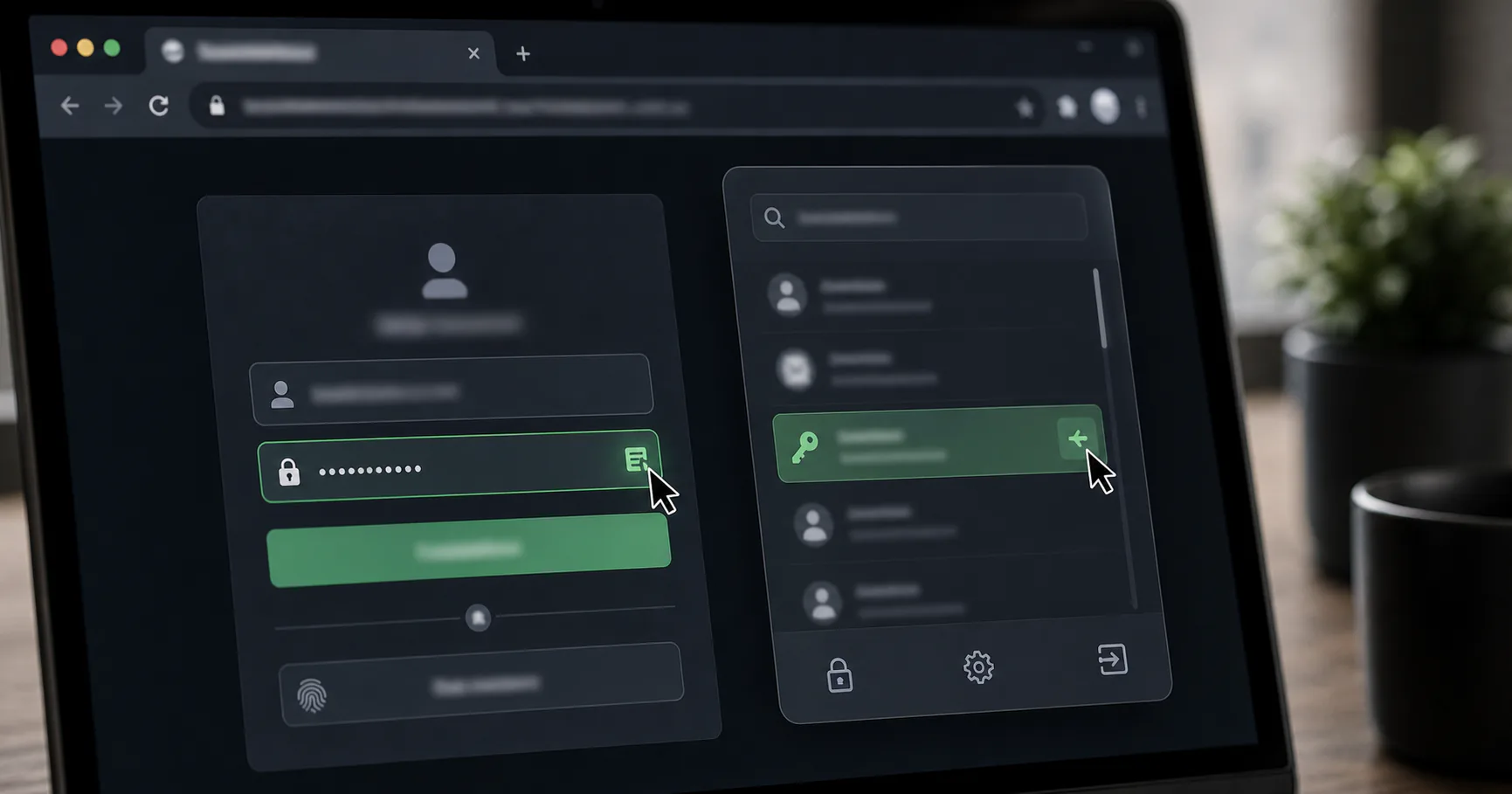
A password manager without cloud can still support autofill. The vault can remain local while a browser extension or operating system integration helps fill credentials on trusted pages.
The safest setup makes autofill explicit, domain-aware, and easy to turn off on untrusted devices.
How no-cloud autofill works
The app stores the vault locally, while the browser extension or OS autofill service asks for matching credentials after the vault is unlocked. The credentials should not need to sync through a provider just to fill a local page.
The implementation should make the locked state clear.
| Step | Expected behavior |
|---|---|
| Detect site | Check domain |
| Unlock vault | Local user approval |
| Choose entry | User selects |
| Fill fields | Insert only selected data |
| Relock | Timeout after inactivity |
Autofill makes strong passwords usable
Without autofill, people often drift toward shorter passwords, reuse, or browser-saved credentials. Autofill lowers that friction.
Convenience can support security when configured carefully.
- Supports unique passwords.
- Reduces typing errors.
- Makes daily use practical.
- Can warn when domain does not match.
- Reduces copy-paste reliance.
Explicit fill is the better default
Automatic fill on page load can be too eager. Explicit click-to-fill or command-based filling keeps the user in the loop.
This is especially important for local-first tools that emphasize user control.
| Fill mode | Tradeoff |
|---|---|
| Silent autofill | Convenient but riskier |
| Click-to-fill | Good balance |
| Keyboard command | Fast for power users |
| Manual copy | Fallback only |
Domain matching is essential
The password manager should only offer credentials for matching websites or apps. If a login does not appear where expected, check the domain before forcing anything.
This behavior can help with phishing awareness.
- Save accurate URLs.
- Review imported domains.
- Avoid broad matching.
- Be cautious with subdomains.
- Do not ignore browser warnings.
Only use trusted browser integration
A browser extension is powerful because it can interact with pages. Install only official extensions and keep the browser profile clean.
Remove old or unknown extensions.
| Extension concern | Safer habit |
|---|---|
| Source | Official store or vendor path |
| Permissions | Review before install |
| Updates | Keep current |
| Other extensions | Remove unnecessary ones |
Clipboard fallback needs a timeout
If autofill fails, copying a password is common. The clipboard can be read by other apps or pasted accidentally.
Use short auto-clear settings where available.
- Clear clipboard quickly.
- Avoid copying during screen share.
- Disable clipboard history if needed.
- Prefer autofill for routine logins.
Mobile autofill has its own rules
On iPhone and Android, autofill depends on OS-level providers and app support. Test the setup with your real browser and apps.
Mobile convenience should still require device unlock or approval.
| Mobile area | Check |
|---|---|
| Autofill provider | Correct app selected |
| Device lock | Strong passcode |
| App matching | Correct login offered |
| Backup | Recover after phone loss |
Recommended no-cloud autofill settings
Start with conservative defaults and loosen only if friction is real. Autofill should be fast, but not invisible.
The vault should lock when you are done.
- Require user action.
- Use strict matching.
- Enable auto-lock.
- Use short clipboard timeout.
- Disable on shared devices.
- Review saved URLs after import.
Conclusion
A password manager without cloud can offer practical autofill without making the cloud part of the vault lifecycle.
Keep autofill explicit, domain-aware, and supported by a trusted browser environment.