
Set Up a Password Manager Without Cloud in 8 Practical Steps
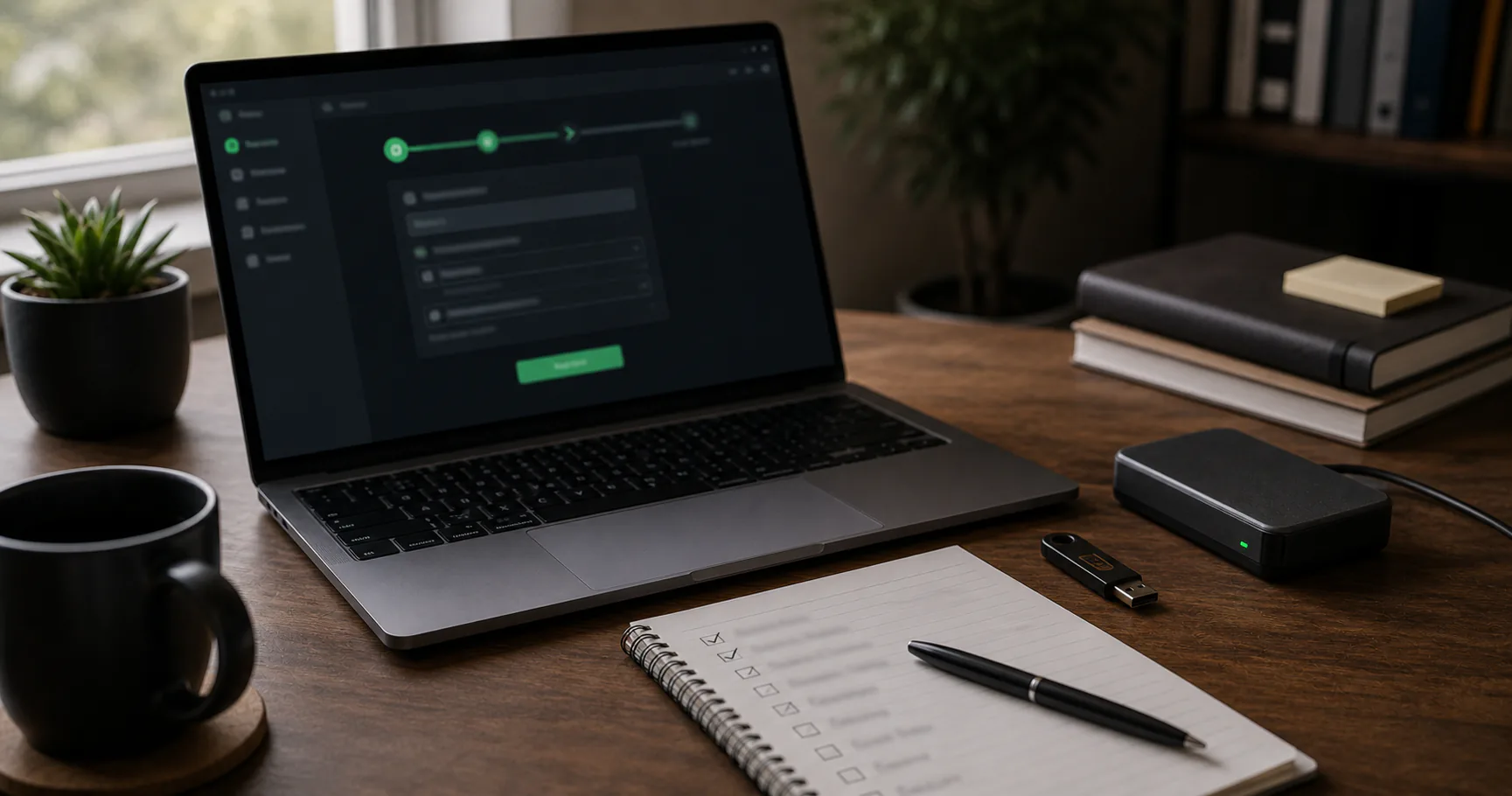
A password manager without cloud stores your encrypted vault on your own device or storage you choose. The setup process is straightforward, but it needs a few deliberate decisions: where the vault lives, how you unlock it, how you import old passwords, and how you recover if the device fails.
This guide gives you a practical no-cloud setup path without pretending that local storage removes every risk. The goal is a setup you can understand, maintain, and back up.
Choose the no-cloud model first
No-cloud can mean a fully local vault, a portable vault file, or a local-first app with optional sync disabled. Pick the model before importing passwords.
This decision affects backups, mobile access, and recovery.
| Model | Best for | Watch out for |
|---|---|---|
| Fully local vault | Maximum custody | Manual backups |
| Portable vault file | USB or travel workflows | Physical loss |
| Local-first app | Flexible daily use | Understand optional sync |
| Cloud app offline mode | Convenience | Still provider-centered |
Prepare the device before storing secrets
A no-cloud vault is only as safe as the device that unlocks it. Update the OS and browser, enable disk encryption where appropriate, and remove extensions you do not trust.
Avoid creating the vault on a shared or unmanaged machine.
- Install updates.
- Use a strong device login.
- Enable disk encryption if available.
- Review browser extensions.
- Avoid shared accounts.
Create the encrypted vault
Create the vault in a location you can find and back up. Do not hide it in Downloads or a temporary folder.
Use a long unique master passphrase and test unlock before adding everything.
| Setup choice | Recommended default |
|---|---|
| Vault location | Known local folder |
| Master password | Long unique passphrase |
| Keyfile | Only with backup plan |
| Auto-lock | Enabled |
| Clipboard timeout | Short |
Import existing passwords carefully
Browser and password manager exports are often plaintext. Treat export files as temporary secrets, not backups.
Import, verify important entries, then clean up the export from downloads, trash, and synced folders.
- Export only when ready.
- Import promptly.
- Verify a sample.
- Delete plaintext exports.
- Disable duplicate browser saving if appropriate.
Configure autofill conservatively
Autofill makes unique passwords practical, but it should not be silent or careless. Prefer explicit click-to-fill and strict domain matching.
Install only official browser integration.
| Feature | Safer setup |
|---|---|
| Autofill | Require click or command |
| Domain matching | Keep strict |
| Extension | Official source |
| Clipboard | Auto-clear quickly |
Make the first backup immediately
The first backup should happen right after setup and import verification. A no-cloud vault without a backup is fragile.
Back up the encrypted vault, not a plaintext export.
- Copy the encrypted vault to external storage.
- Keep one copy outside the main device.
- Document keyfile requirements.
- Test restore before relying on it.
Write recovery notes without exposing secrets
Recovery notes should explain where the vault and backups are, which app opens them, and whether a keyfile is required. They should not casually reveal the master password.
Keep recovery material offline and physically protected.
| Recovery item | Include? |
|---|---|
| App name | Yes |
| Vault location | Yes |
| Backup location | Yes |
| Master password | Only with strong physical protection |
| Keyfile note | Yes if used |
Maintain the setup after changes
No-cloud password management is not a one-time task. Update the app, remove old exports, and refresh backups after meaningful vault changes.
A small recurring routine keeps the setup safe enough to live with.
- Update monthly.
- Back up after major changes.
- Review critical accounts quarterly.
- Test restore occasionally.
- Remove stale exports.
Conclusion
A password manager without cloud is strongest when setup choices are explicit: local vault, strong master password, careful imports, conservative autofill, and tested backups.
Start with a small working setup, prove recovery, then move the rest of your passwords.