
Portable No-Cloud Password Managers: What to Know Before Using One
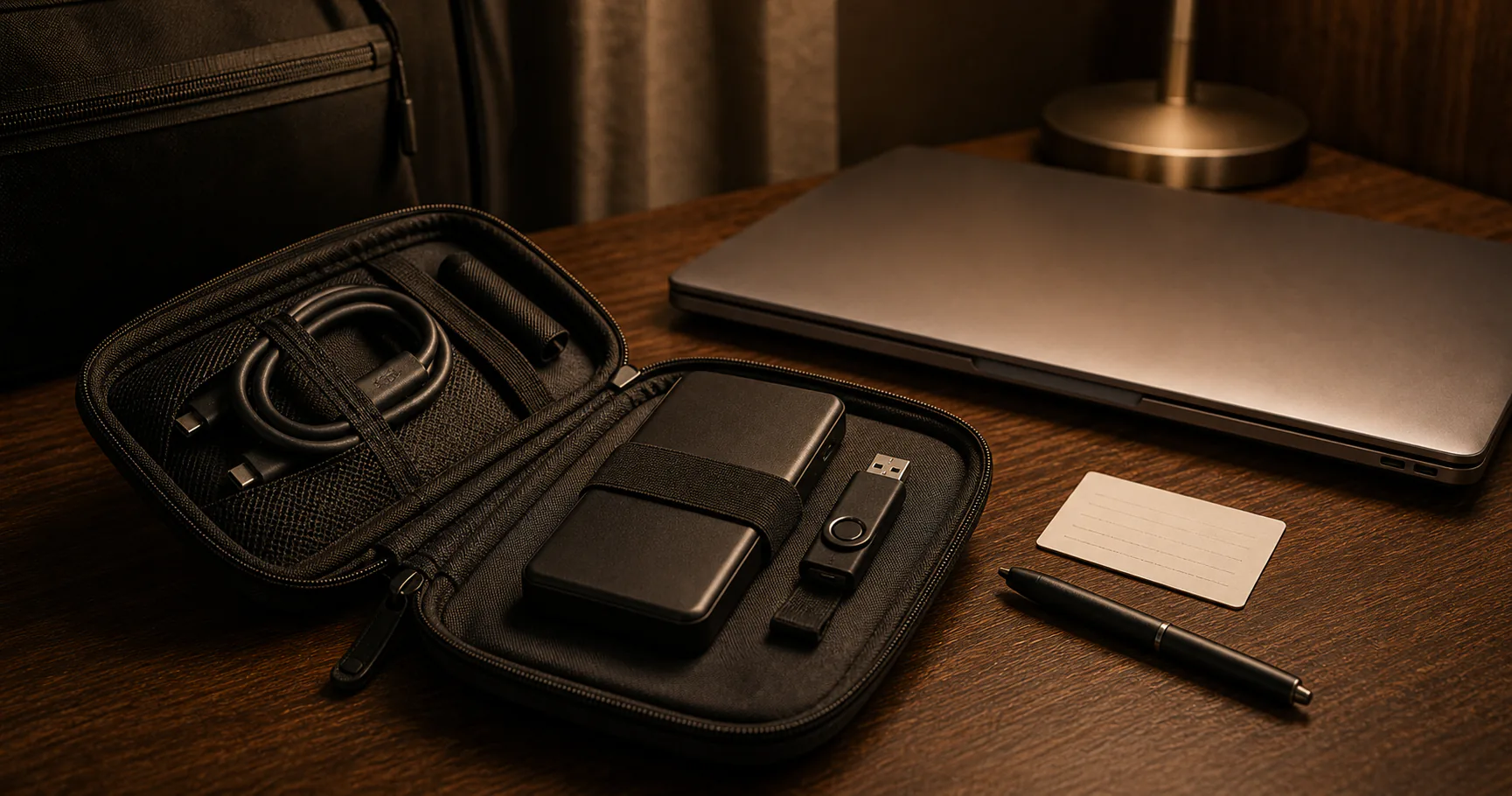
Portable password manager options without cloud let you carry an encrypted vault or recovery copy without depending on a provider account. They can help with travel, emergency access, and separated backups.
Portability also introduces physical risk, so device trust and backup discipline matter.
Portable no-cloud models
Portable can mean a vault file on a drive, a portable app, a travel vault, or an emergency backup. These models solve different problems.
Do not choose a portable setup until you know which problem you are solving.
| Model | Best use |
|---|---|
| Vault on USB | Portable encrypted storage |
| Portable app | Self-contained access |
| Travel vault | Limited accounts |
| Emergency backup | Recovery after loss |
Portable vaults require trusted devices
Unlocking a portable vault on an untrusted computer can expose passwords regardless of where the vault is stored. Public computers are not safe vault hosts.
Use trusted personal devices.
- Avoid public computers.
- Avoid borrowed devices.
- Use updated systems.
- Lock after use.
- Clear clipboard.
Travel copies should be smaller when possible
A smaller travel vault can reduce exposure if a drive or laptop is lost. Include only the accounts you actually need away from home.
Keep the full backup somewhere safer.
| Vault type | Use |
|---|---|
| Full vault | Home or trusted devices |
| Travel vault | Limited mobile access |
| Emergency copy | Recovery only |
| Archive vault | Rarely used records |
Portable apps need update planning
A portable app can be convenient, but it may be harder to keep updated than an installed app. Browser integration may also be less smooth.
Security software should not become stale.
- Check update process.
- Verify download source.
- Test browser integration.
- Avoid unknown portable builds.
- Keep backup before app changes.
A portable drive is not enough by itself
If the portable drive is the only vault copy, it is not a backup. Keep another encrypted copy elsewhere.
Loss and damage are normal portable-device risks.
| Risk | Protection |
|---|---|
| Drive lost | Separate backup |
| Drive damaged | Second medium |
| Vault conflict | Dated copies |
| Keyfile missing | Protected duplicate |
Avoid editing multiple portable copies
Portable workflows can create multiple active vault files. If two copies change independently, merging may be difficult.
Use one active copy and back up from it.
- Name the primary copy.
- Avoid editing two copies.
- Use dates in backup names.
- Check modified times.
- Keep restore points.
Portable does not mean less secure if handled carefully
A portable no-cloud setup can be strong when the vault is encrypted, devices are trusted, and backups are separate. The weak point is usually process, not portability itself.
Keep the routine simple.
| Good habit | Reason |
|---|---|
| Encrypt vault | Protects lost drive |
| Use trusted devices | Protects unlocked secrets |
| Back up separately | Prevents data loss |
| Limit travel vault | Reduces exposure |
Portable no-cloud checklist
Before relying on a portable vault, walk through the whole lifecycle: carry, unlock, update, back up, recover.
If any step is vague, fix it before adding critical accounts.
- Create encrypted vault.
- Choose portable storage.
- Create separate backup.
- Test on trusted device.
- Document recovery.
- Review before travel.
Conclusion
Portable password manager options without cloud are useful for travel and recovery when they stay encrypted and are used only on trusted devices.
Portability is a workflow. Keep it simple, backed up, and tested.