
Using a USB Drive as a No-Cloud Password Vault
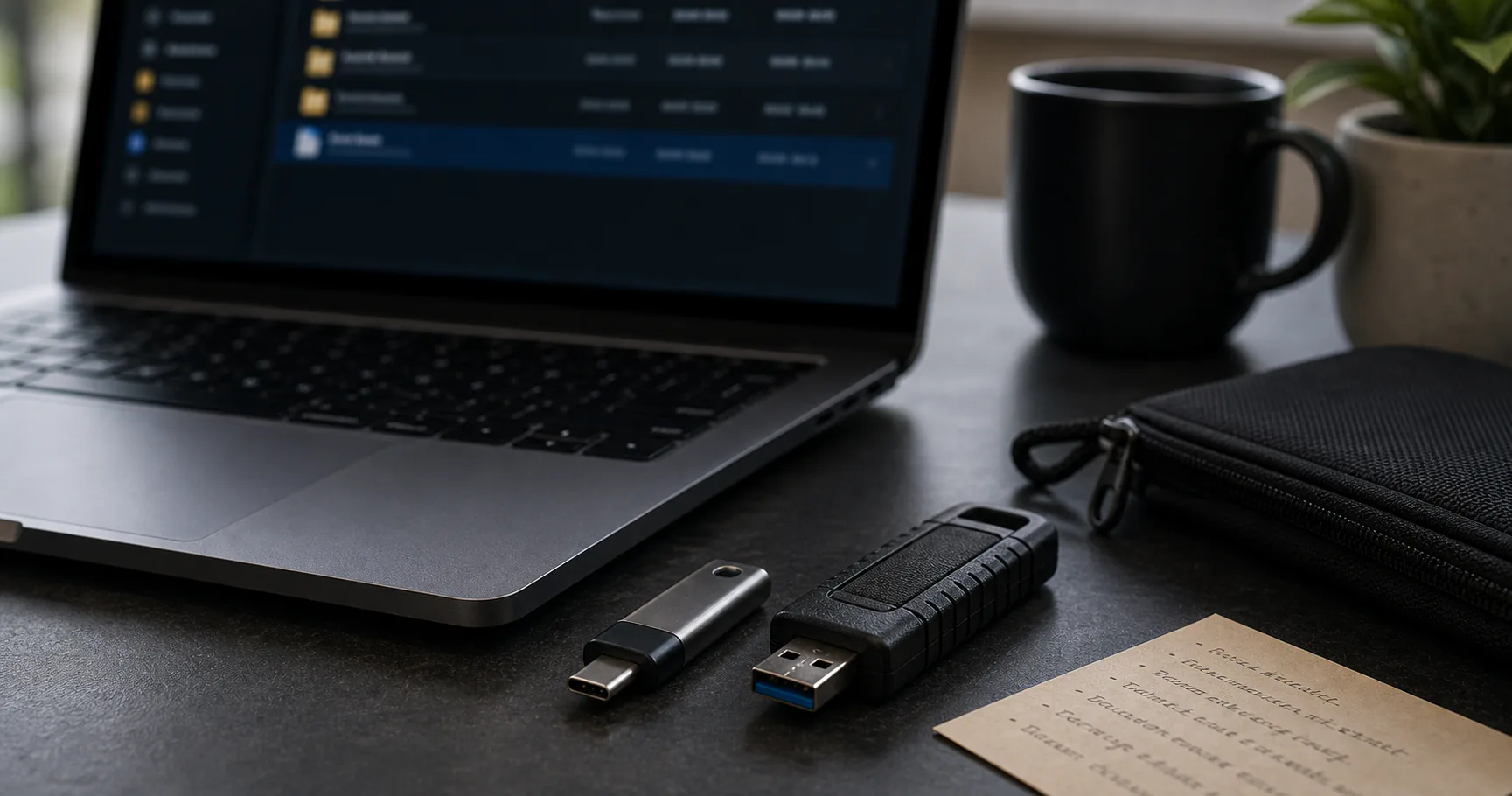
A password manager without cloud on a USB drive can give you portable access to an encrypted vault without relying on a provider account. It is useful for emergency copies, travel workflows, or people who want a vault stored separately from their main device.
The tradeoff is physical risk. USB drives can be lost, damaged, copied, or forgotten, so the vault must remain encrypted and backed up somewhere else.
What a USB no-cloud password manager setup means
A USB setup usually means the encrypted vault file lives on removable storage, while the password manager app opens it on a trusted computer. Some people also carry a portable app, but that adds update and trust-chain concerns.
The USB drive should be treated as a carrier for encrypted data, not as the only recovery plan.
| Model | Best use | Caution |
|---|---|---|
| Vault file on USB | Portable encrypted storage | Needs compatible app |
| Portable app and vault | Self-contained workflow | Harder to update |
| USB backup copy | Emergency recovery | Must not be the only copy |
The computer matters more than the USB drive
A USB vault is only safe while locked. Once you unlock it on a computer, that computer can become the weak point through malware, clipboard access, screen capture, or browser compromise.
Avoid unlocking a full vault on borrowed or public machines.
- Use trusted personal devices.
- Avoid public computers.
- Keep the OS and browser updated.
- Lock the vault when stepping away.
- Clear clipboard after copying secrets.
Choosing a USB drive for password vault storage
Use a reliable drive from a known source and avoid novelty drives or unknown promotional devices. Hardware-encrypted drives can add a layer, but the vault itself should still be encrypted by the password manager.
Reliability matters because a corrupted drive can mean recovery stress.
| Drive choice | Why it matters |
|---|---|
| Reliable USB-C or USB-A drive | Reduces failure risk |
| Hardware-encrypted drive | Adds physical loss protection |
| Tiny keychain drive | Portable but easier to lose |
| Unknown free drive | Avoid due to trust concerns |
A USB drive is not a backup by itself
If the USB drive is the only copy of the vault, it is a single point of failure. Keep another encrypted backup on a separate drive, device, or storage location.
Test restore from the backup before relying on the USB workflow.
- Keep one copy on the main trusted device.
- Keep one encrypted backup separate from the USB drive.
- Name backup files with dates.
- Test unlock from the backup.
- Replace unreliable drives early.
Be careful with keyfiles on USB drives
A keyfile can strengthen a vault, but storing the vault and keyfile on the same USB drive reduces the value of separation. Losing that drive may also mean losing both required pieces.
If you use a keyfile, keep protected duplicate copies and document the recovery process.
| Setup | Risk |
|---|---|
| Vault and keyfile on same drive | Convenient but less separated |
| Vault on USB, keyfile elsewhere | Stronger separation |
| Only keyfile copy on USB | High lockout risk |
A safe routine for USB password vault use
The safest USB workflow is deliberate: connect the drive, open the vault only on a trusted machine, finish the task, lock the vault, eject the drive, and store it safely.
Do not leave the USB drive plugged in as permanent storage unless that is part of your threat model.
- Connect only when needed.
- Unlock on trusted devices only.
- Avoid plaintext exports.
- Lock before ejecting.
- Store the drive away from the laptop.
Traveling with a USB password vault
Travel increases the chance of loss and inspection. Consider carrying a smaller travel vault with only needed accounts rather than your full archive.
Keep MFA recovery options and emergency access separate from the USB drive.
| Travel choice | Benefit |
|---|---|
| Small travel vault | Limits exposure |
| Full vault | More convenient but higher impact if lost |
| Backup at home | Recovery after loss |
| Strong device lock | Protects local access |
USB no-cloud password manager checklist
A USB setup should be boring and repeatable. If it feels clever, it may be too fragile.
- Use encrypted vault storage.
- Use trusted computers.
- Keep a separate backup.
- Avoid public machines.
- Test restore.
- Document keyfile handling if used.
Conclusion
A password manager without cloud on a USB drive can work well for portable access and offline recovery when the vault stays encrypted and the drive is not the only copy.
The USB drive gives portability. Your real security comes from device trust, strong vault protection, separate backups, and a routine you actually follow.