
How to Use a Password Manager Without Cloud on Mac
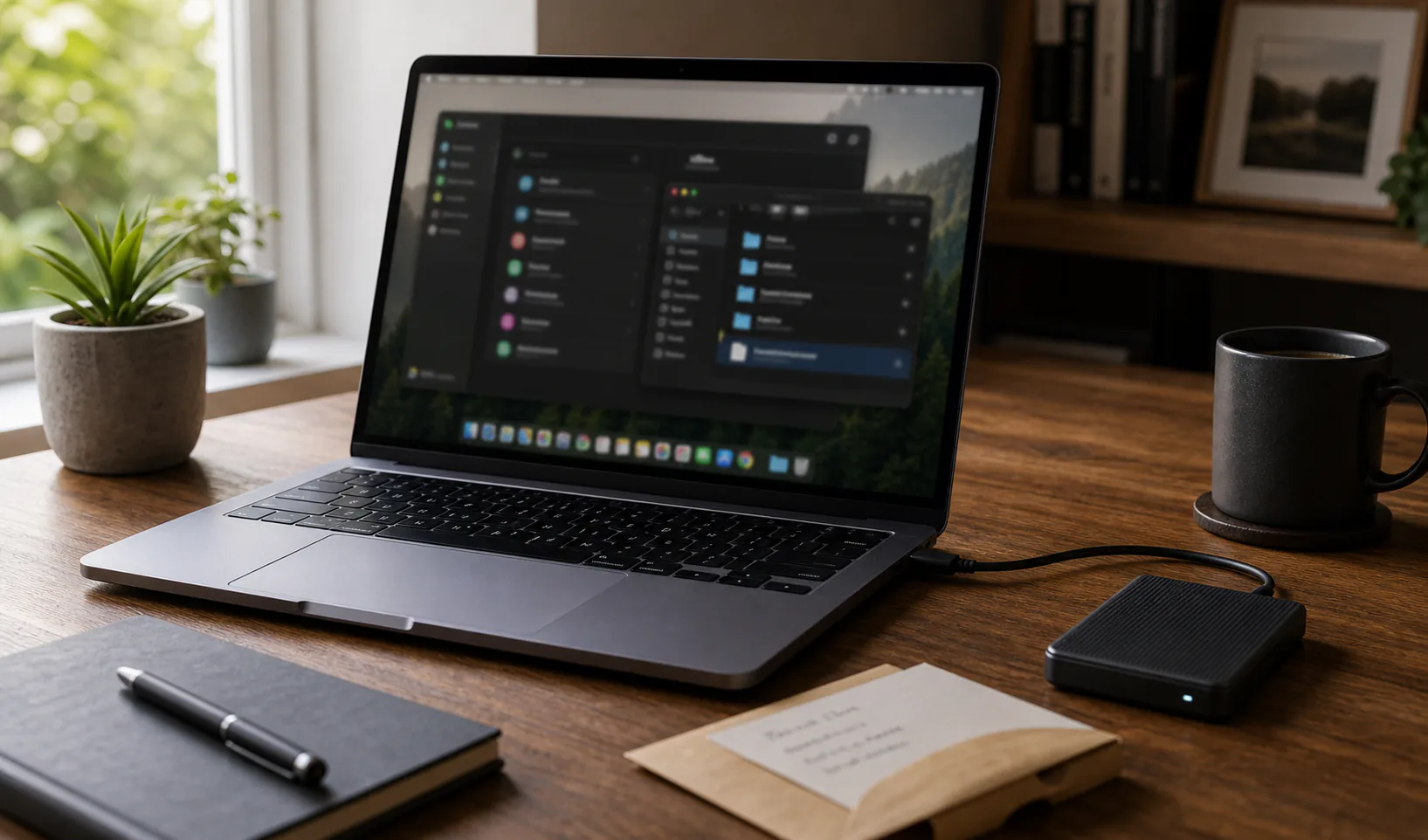
A password manager without cloud for Mac keeps your encrypted vault under local control instead of making a cloud account the default storage and recovery layer. For Mac users who value privacy and portability, this can be a clean fit.
The setup should include FileVault where appropriate, careful browser integration, safe imports, and a backup plan that survives device loss or replacement.
When a no-cloud Mac password manager makes sense
A no-cloud Mac setup works best when you want local custody, use one or two trusted Apple devices, and are comfortable managing backups.
It is less suitable when automatic sync and provider-assisted recovery are more important than local control.
| Good fit | Less ideal |
|---|---|
| Privacy-focused Mac workflow | Hands-off sync required |
| Single main Mac | Many devices with no backup habit |
| Local backup discipline | Provider reset expected |
| Separate vault from browser account | Browser-only workflow preferred |
Prepare macOS before creating a vault
The Mac is the trusted environment where the vault is unlocked. Keep macOS updated, protect the user account, and enable FileVault if it fits your device and organization policy.
Review browser extensions before importing passwords or installing password manager integration.
- Install macOS updates.
- Use a strong login password and Touch ID where appropriate.
- Enable FileVault if suitable.
- Review Safari, Chrome, Firefox, or Arc extensions.
- Avoid setting up the vault in a shared macOS account.
Understand iCloud Drive before using it for vault files
Saving an encrypted vault in iCloud Drive can be convenient, but it is no longer a purely no-cloud storage choice. The vault may still be encrypted by the password manager, but the file is being synced through Apple infrastructure.
That may be acceptable if availability matters. It should not happen by accident.
| Storage choice | Meaning |
|---|---|
| Local folder | Mac-centered storage |
| External drive | Offline separated copy |
| iCloud Drive | Encrypted vault file syncs through Apple |
| Time Machine | Backup copy depends on Time Machine configuration |
Create a master passphrase separate from Apple ID
Do not reuse your Apple ID password, Mac login password, or email password as the vault master password. The vault should have an independent secret.
A long passphrase gives practical strength while remaining memorable.
- Use a unique passphrase.
- Avoid personal facts.
- Do not store the master password in Notes or the same vault.
- Keep recovery material offline.
- Document keyfile use if enabled.
Configure browser autofill on Mac carefully
Mac users may use Safari, Chrome, Firefox, Arc, or multiple browsers. A dedicated local password manager should make browser filling explicit and domain-aware.
After migration, decide whether browser password saving should be disabled to avoid split storage.
| Browser choice | Setup reminder |
|---|---|
| Safari | Check autofill and extension settings |
| Chrome | Review Google Password Manager imports |
| Firefox | Check extension source and permissions |
| Multiple browsers | Use one vault as source of truth |
Import Mac browser passwords safely
Exports from browsers or password managers can create plaintext files on the Mac. Treat them as temporary secrets.
Import only when ready, verify the result, and remove the export from Downloads, Desktop, Trash, and iCloud-synced locations.
- Export only when ready.
- Avoid leaving CSV files in Downloads.
- Verify important entries.
- Delete temporary exports.
- Check Trash and synced folders.
Use Time Machine thoughtfully with password vaults
Time Machine can help recover a vault file, but it may also retain old copies. That is usually acceptable for encrypted vault files, but not for plaintext exports.
Make sure your recovery plan accounts for where Time Machine backups live and who can access them.
| File type | Time Machine guidance |
|---|---|
| Encrypted vault | Reasonable to back up |
| Plaintext CSV export | Avoid or delete before backup runs |
| Keyfile | Back up deliberately and separately |
| Recovery note | Keep offline and protected |
Keep an external encrypted backup
A no-cloud Mac setup should not depend only on the Mac internal drive. Keep an encrypted backup on an external drive, secondary device, or another storage location you trust.
Test restore by opening the backup copy on a trusted device.
- Copy the encrypted vault after major changes.
- Store the drive safely.
- Keep keyfiles available if needed.
- Test unlock from the backup.
- Replace failing drives early.
Plan for a new Mac or erased device
A good local setup should survive migration to a new Mac. That means knowing where the vault backup is, how to install the app, and whether a keyfile is required.
Do a dry run before you depend on it.
| Recovery need | Prepare |
|---|---|
| Vault file | Encrypted backup copy |
| App | Document name and source |
| Master password | Memorized or offline recovery process |
| Keyfile | Protected duplicate |
| Browser integration | Extension setup notes |
Mac no-cloud setup checklist
Keep the setup small enough to maintain. The core is device security, vault creation, import cleanup, and tested backup.
- Update macOS.
- Enable FileVault if appropriate.
- Create a local vault.
- Set auto-lock.
- Configure browser filling.
- Import and delete exports.
- Create an external backup.
- Test restore.
Conclusion
A password manager without cloud for Mac can give you a clear local-first workflow when macOS is secured, vault storage is intentional, browser filling is controlled, and backups are tested.
The main decision is whether you want local custody enough to handle recovery yourself. If yes, the Mac can be a strong home for a private encrypted vault.