
Can You Use a Password Manager Without Cloud on iPhone?
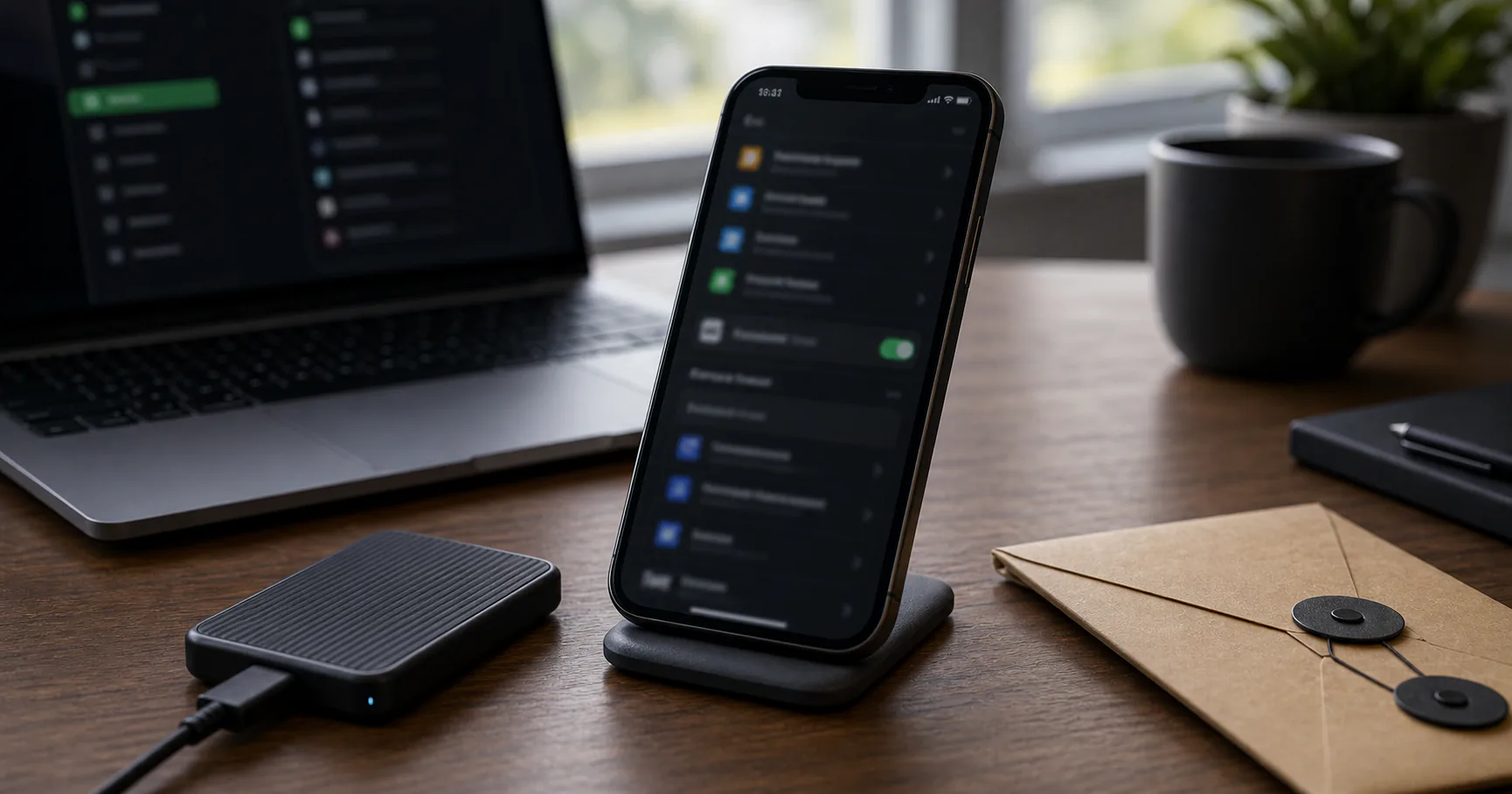
Using a password manager without cloud on iPhone is possible in some workflows, but the tradeoffs are different from desktop. iOS is designed around app sandboxing, system autofill, iCloud options, and device backups.
The main question is whether you need a fully no-cloud vault on the phone or whether the iPhone should be a secondary access device for a local-first setup.
The iPhone no-cloud reality check
iPhone apps operate inside iOS rules. A password manager can store encrypted data locally, but file movement, browser integration, and backups are more constrained than on desktop.
This can improve safety in some ways and make manual workflows harder in others.
| iPhone factor | Effect |
|---|---|
| App sandboxing | Limits broad file access |
| System autofill | Controls credential filling |
| iCloud options | Convenient but cloud-based |
| Device replacement | Recovery planning matters |
When no-cloud password management fits iPhone users
A no-cloud iPhone setup fits people who use the phone as a secondary vault device, travel with limited credentials, or want to avoid provider sync for sensitive vault data.
It is less convenient for people who expect seamless password access across many Apple devices without manual work.
- You mostly manage the vault on desktop.
- You need selected credentials on iPhone.
- You are comfortable with manual backup steps.
- You want reduced cloud dependency.
- You understand recovery limits.
Start with iPhone device security
The iPhone should require a strong passcode, current iOS updates, and careful app installation. Face ID or Touch ID can improve usability, but the device passcode still matters.
Avoid unlocking password vaults on devices you do not control.
| Setting | Why it matters |
|---|---|
| iOS updates | Security fixes |
| Strong passcode | Protects device unlock |
| Biometrics | Convenient local approval |
| Auto-lock | Reduces unattended access |
| Trusted apps | Limits local exposure |
Use iOS autofill deliberately
iOS autofill can make a password manager usable on mobile. Configure the intended password manager as the autofill provider and disable providers you do not want using the same workflow.
Check that autofill requires device approval and matches the right site or app.
- Choose the intended autofill provider.
- Review saved credentials after import.
- Use device approval for filling.
- Be cautious with lookalike domains.
- Keep the password app updated.
Local storage and Files app tradeoffs
Some iPhone workflows involve local app storage, the Files app, iCloud Drive, or manually imported vault files. These choices are not equivalent.
If a vault file is stored in iCloud Drive, it is no longer purely local even if encrypted.
| Storage path | Meaning |
|---|---|
| App-local storage | Contained inside the app |
| On My iPhone | Local file storage |
| iCloud Drive | Cloud-synced encrypted file |
| External transfer | Manual workflow and compatibility limits |
Be careful importing passwords on iPhone
Plaintext imports are awkward and risky on mobile. If possible, perform browser or password manager migration on a trusted desktop, then move only the encrypted result to the iPhone workflow.
Avoid keeping CSV files in Files, iCloud Drive, email attachments, or chats.
- Prefer desktop migration for large imports.
- Avoid emailing password exports to yourself.
- Delete temporary files after import.
- Check cloud-synced file locations.
- Verify important entries before cleanup.
Backups and recovery are the hardest part
An iPhone can be lost, replaced, erased, or restored. A no-cloud password manager setup must survive that without relying on vague memory.
Keep an encrypted backup outside the phone and document how to restore it.
| Recovery item | Plan |
|---|---|
| Encrypted vault | Backup outside iPhone |
| Master password | Memorized or offline recovery process |
| Keyfile | Protected duplicate if used |
| App access | Know the app and setup steps |
| Critical accounts | Keep MFA recovery codes safe |
iCloud Keychain vs no-cloud vaults
iCloud Keychain is convenient and deeply integrated, but it is a cloud-synced Apple ecosystem feature. A no-cloud vault prioritizes local control and explicit backups instead.
Some users may use both, but that can split credentials across systems and make audits harder.
| Need | iCloud Keychain | No-cloud local vault |
|---|---|---|
| Apple ecosystem sync | Strong | Manual or limited |
| Local custody | Lower | Stronger |
| Recovery convenience | Apple-centered | User-managed |
| Cross-platform independence | Limited | Depends on tool |
Consider a smaller mobile vault
Instead of carrying every password on iPhone, some users keep a smaller mobile vault with travel, email, banking, and emergency accounts. This reduces exposure if the phone is lost or inspected.
The main desktop vault can remain more complete.
- Include only daily mobile accounts.
- Keep email and identity accounts protected.
- Avoid unnecessary archived logins.
- Back up both vaults deliberately.
- Review the mobile vault before travel.
iPhone no-cloud setup checklist
The iPhone setup should be simple, because mobile recovery is stressful when something goes wrong.
- Update iOS.
- Use a strong passcode.
- Configure the password manager and autofill provider.
- Avoid plaintext exports on the phone.
- Keep an encrypted backup outside the device.
- Test recovery on a trusted device.
- Store MFA recovery codes safely.
Conclusion
A password manager without cloud for iPhone is possible, but it needs a realistic workflow. iOS is excellent at device-level protection, while no-cloud vault recovery requires planning outside the phone.
For many people, the strongest approach is a local-first desktop vault plus carefully configured iPhone access, explicit backups, and no lingering plaintext exports.