
How to Keep Passwords Local on Android Without Cloud Sync
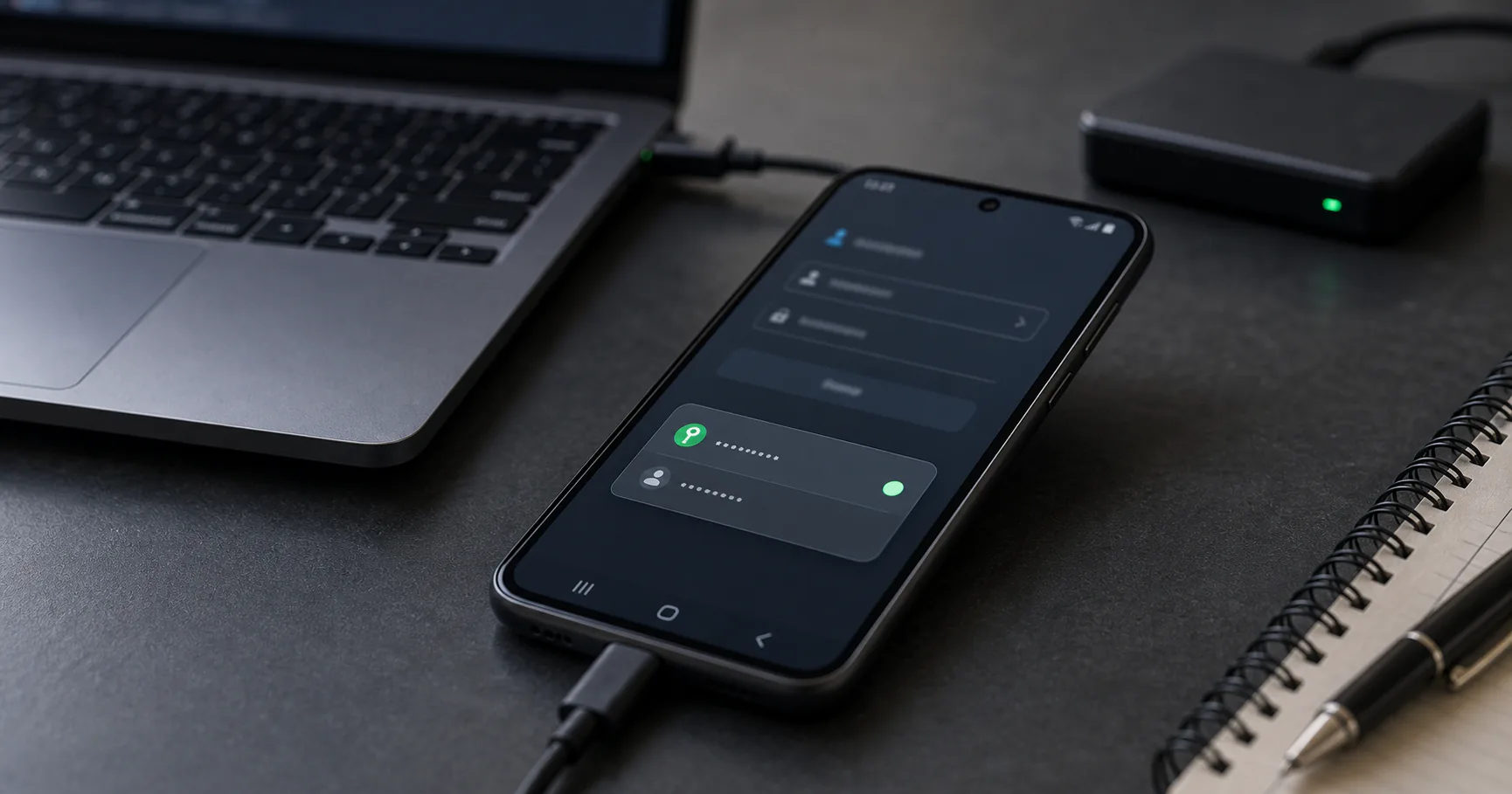
A password manager without cloud for Android can keep encrypted vault data on the device or in storage you choose. It is useful for people who want local control, but Android setups vary by device maker, browser, autofill service, and backup settings.
The safest workflow starts with device security, then configures autofill, imports carefully, and keeps an encrypted backup outside the phone.
Android no-cloud setups vary by device
Android gives users flexibility, but that also means setup details differ across phones, vendors, browsers, and app stores. Test the workflow on your actual device before relying on it.
Pay attention to OS updates and whether your device still receives security patches.
| Factor | Why it matters |
|---|---|
| OS version | Security and autofill support |
| Device maker | Backup and permission behavior |
| Browser choice | Filling reliability |
| App source | Trust and update path |
| Storage settings | Where vault data lives |
When a no-cloud Android password manager fits
A no-cloud Android setup fits users who want local custody, carry selected credentials, or use Android as part of a broader local-first workflow.
It is less suitable if effortless cloud sync and account recovery are the top priorities.
- You want reduced cloud dependency.
- You can manage backups.
- You use trusted personal devices.
- You are comfortable configuring autofill.
- You do not need provider-assisted recovery.
Secure the Android device first
The phone is where passwords are decrypted and filled. Use a strong screen lock, keep the OS patched, and avoid installing apps from untrusted sources.
Local storage cannot protect secrets from a device that is already compromised while the vault is unlocked.
| Setting | Safer default |
|---|---|
| Screen lock | Strong PIN/password or biometrics |
| Security updates | Install promptly |
| App sources | Trusted stores or verified sources |
| Device encryption | Enabled on modern Android devices |
| Lock timeout | Short enough for daily safety |
Configure Android autofill carefully
Android autofill can make local password managers practical on mobile. Choose the intended autofill service and test it in your main browser and apps.
A good setup requires user approval and correct domain or app matching.
- Set the intended password manager as autofill service.
- Test with browser and app logins.
- Keep filling explicit.
- Use clipboard fallback sparingly.
- Clear clipboard quickly if supported.
Understand local storage, files, and sync folders
Some Android password managers keep vault data inside app storage. Others may import or open vault files from local storage or synced folders. Know which model you are using.
If you store the vault in Google Drive, Dropbox, Syncthing, or another sync system, your setup is no longer purely local even if the vault is encrypted.
| Storage model | Meaning |
|---|---|
| App storage | Contained by the app |
| Local file | User-managed vault location |
| External SD card | Portable but device-dependent |
| Cloud folder | Encrypted file syncs remotely |
| Local network sync | More control, more setup |
Handle imports away from the phone when possible
Large password imports are often easier and safer on a trusted desktop. Plaintext CSV files on a phone can be hard to track, especially if file managers, cloud apps, or messaging apps touch them.
If you import on Android, clean up immediately.
- Prefer desktop import for large migrations.
- Avoid sending exports through email or chat.
- Delete temporary files after import.
- Check downloads and cloud folders.
- Verify important entries before cleanup.
Back up the Android vault outside the phone
Phones are lost, replaced, reset, and damaged. A no-cloud password manager setup needs an encrypted backup that does not live only on the phone.
Keep recovery material available without putting plaintext secrets into cloud notes or screenshots.
| Backup item | Guidance |
|---|---|
| Encrypted vault | Copy to trusted external location |
| Master password | Memorized or offline recovery process |
| Keyfile | Separate duplicate if used |
| MFA recovery codes | Store securely |
| Restore instructions | Document enough to repeat |
Google Password Manager vs no-cloud Android vaults
Google Password Manager is convenient on Android, but it is tied to a Google account and sync model. A no-cloud vault prioritizes custody and explicit movement of encrypted data.
Switching may make sense if you want a vault separate from your browser and Google account.
| Need | Google Password Manager | No-cloud local vault |
|---|---|---|
| Android integration | Strong | Depends on app |
| Local custody | Lower | Stronger |
| Cross-platform independence | Google-centered | Tool-dependent |
| Manual backups | Less central | Required |
Travel and lost-phone planning
A phone is easy to lose while traveling. Before relying on a local Android vault, decide what happens if the phone disappears.
You should be able to restore from another trusted device without needing secrets stored only on the lost phone.
- Keep an external encrypted backup.
- Store MFA recovery codes safely.
- Know how to revoke sessions for critical accounts.
- Use a strong device lock.
- Avoid carrying unnecessary archived credentials.
Android no-cloud setup checklist
Keep the Android setup practical. The essential steps are device security, autofill configuration, import cleanup, and tested recovery.
- Update Android.
- Use a strong screen lock.
- Install the password manager from a trusted source.
- Configure autofill.
- Avoid plaintext exports on the phone.
- Back up the encrypted vault.
- Test restore.
- Review critical accounts.
Conclusion
A password manager without cloud for Android can work well when the device is trusted, autofill is configured carefully, and backups exist outside the phone.
Android gives flexibility, but flexibility needs discipline. Know where the vault lives, what sync choices you made, and how you would recover after losing the device.