
How to Back Up a No-Cloud Password Manager the Right Way
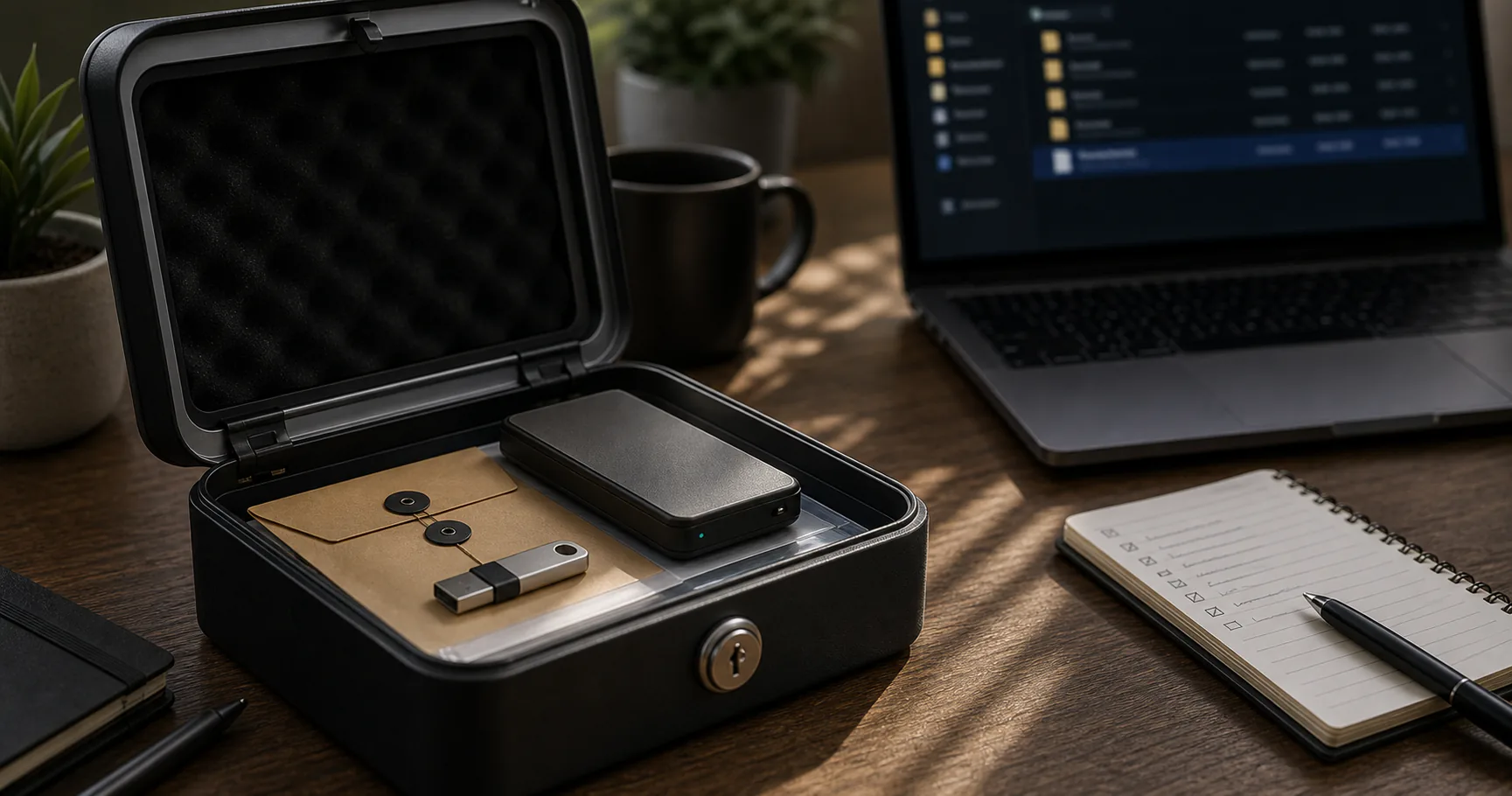
A password manager without cloud needs a backup plan because there may be no provider copy waiting for you after device loss. The safest backup is usually a copy of the encrypted vault, stored separately and tested before you need it.
The worst backup is a forgotten plaintext export. It may be easy to open, but it also creates a direct leak path for every password.
What a no-cloud backup must accomplish
The backup should protect against device failure, accidental deletion, corruption, and replacement. It should not make passwords easier to steal.
That means encryption stays central.
| Goal | How to meet it |
|---|---|
| Recover after device loss | Store copy elsewhere |
| Avoid leaks | Back up encrypted vault |
| Avoid stale data | Refresh after major changes |
| Prove it works | Restore test |
Where to keep no-cloud vault backups
External drives, USB drives, secondary devices, and carefully chosen cloud folders can all work. The choice changes the threat model.
Use at least one location outside the main device.
| Location | Benefit | Risk |
|---|---|---|
| External SSD | Offline control | Must be updated |
| USB drive | Portable | Easy to lose |
| Secondary computer | Fast recovery | Must be secured |
| Cloud folder | Available anywhere | Adds provider metadata |
Do not use plaintext exports as regular backups
CSV or JSON exports may contain all credentials in readable form. They are useful for migration but dangerous as long-term backups.
If you create one, import or verify it, then remove it.
- Delete from Downloads.
- Empty trash or recycle bin where appropriate.
- Check cloud-synced folders.
- Check backup tools did not copy it.
- Prefer encrypted formats.
Back up after meaningful changes
Backup frequency should follow vault activity. After imports, cleanup sessions, password rotations, or keyfile changes, create a new encrypted backup.
A stale backup is better than none, but it can still miss critical changes.
| Change | Backup timing |
|---|---|
| Large import | Immediately after verification |
| Password cleanup | After session |
| New critical account | Same day |
| Keyfile change | Immediately |
| Low activity | Monthly or quarterly |
Test restore without spreading copies
A restore test confirms that the vault opens and contains expected entries. Use a trusted device and delete temporary copies afterward.
Testing turns a hope into a plan.
- Copy the encrypted backup to a trusted device.
- Open it with the password manager.
- Unlock with expected secret.
- Check several entries.
- Delete temporary test files.
Backups with keyfiles need extra care
If your vault requires a keyfile, the vault backup alone is not enough. You need a protected keyfile recovery plan.
Do not keep only one keyfile copy.
| Item | Backup rule |
|---|---|
| Vault file | Multiple encrypted copies |
| Keyfile | Separate protected duplicate |
| Master password | Offline recovery process |
| Instructions | Clear but not revealing |
Protect backups from accidental overwrite
If every backup is always connected, accidental deletion or ransomware can damage all copies. Offline or versioned backups reduce that risk.
Disconnect external backups when not in use.
- Keep at least one offline copy.
- Use dated backup names.
- Avoid overwriting the only backup.
- Disconnect drives after backup.
- Replace failing drives.
A simple no-cloud backup routine
The routine should be short enough to repeat. Complexity is the enemy of recovery.
Put the reminder somewhere you already check.
- Monthly: copy encrypted vault.
- Quarterly: restore test.
- After imports: remove exports.
- Twice a year: review recovery note.
- After device change: rebuild backup plan.
Conclusion
A no-cloud password manager backup should be encrypted, separate from the main device, and tested. Keep plaintext exports out of the backup routine.
The backup process does not need to be fancy. It needs to be repeatable.