
Password Managers for Windows That Do Not Need an Account
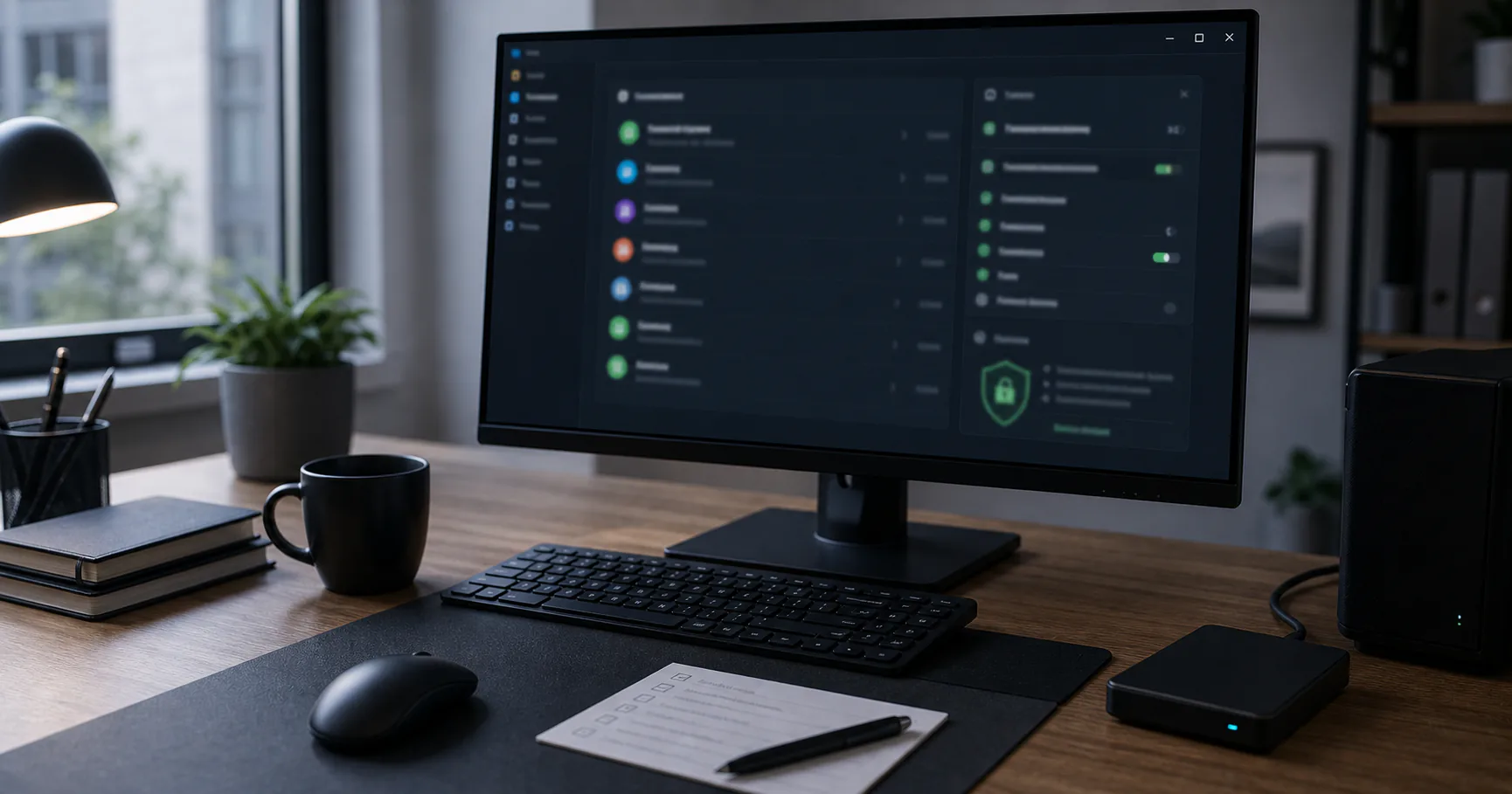
A no-account password manager for Windows lets you create and use an encrypted vault without signing up for a remote service account. That can be useful if you want local control, privacy, or a simpler custody model.
The setup still needs Windows device security, safe imports, browser configuration, and backups.
When a no-account Windows password manager fits
This model fits users who mainly work from one Windows PC and do not want a provider account tied to their vault. It is less convenient for people who need automatic cross-device sync.
The key is accepting recovery responsibility.
| Good fit | Less ideal |
|---|---|
| Single main PC | Many unmanaged devices |
| Privacy preference | Need provider recovery |
| Manual backup habit | No maintenance habit |
| Local-first workflow | Heavy sharing needs |
Prepare Windows before creating the vault
Update Windows, secure your user account, and enable disk encryption if available. The vault is local, so endpoint security matters.
Review browser extensions before adding password manager integration.
- Install Windows updates.
- Use strong Windows login.
- Enable disk encryption where available.
- Remove untrusted extensions.
- Avoid shared Windows accounts.
Store the vault where you can back it up
Choose a known local folder or external encrypted storage. Avoid temporary folders and accidental cloud sync unless intentional.
A no-account vault still needs a recovery plan.
| Location | Use |
|---|---|
| Documents folder | Simple local use |
| External drive | Separated backup |
| OneDrive folder | Cloud sync if intentional |
| USB drive | Portable copy |
Configure browser filling on Windows
A no-account vault can still use browser autofill through an extension or local bridge. Use official integration and explicit fill.
After import, consider disabling browser password saving to avoid duplicates.
- Install official extension.
- Require click-to-fill.
- Use strict domain matching.
- Set auto-lock.
- Clean up old browser saves.
Import passwords without keeping plaintext exports
Windows browser exports are often CSV files. Treat them as temporary secrets.
Delete them after import and verification.
| Export source | Cleanup target |
|---|---|
| Chrome or Edge CSV | Downloads and Recycle Bin |
| Old password manager export | Desktop and synced folders |
| Backup software | Exclude plaintext export |
| Email attachment | Avoid sending exports |
Back up the no-account Windows vault
No account means the provider may not have a copy. Keep encrypted backups outside the PC and test restore.
Document keyfile use if enabled.
- Copy encrypted vault.
- Use external storage.
- Keep a second copy.
- Test restore.
- Review recovery note.
Conclusion
A no-account password manager for Windows can be private and practical when the vault is stored clearly, the device is secured, imports are cleaned up, and backups are tested.
No account reduces provider dependency, but it makes recovery your job.