
Password Managers for Mac That Work Without an Account
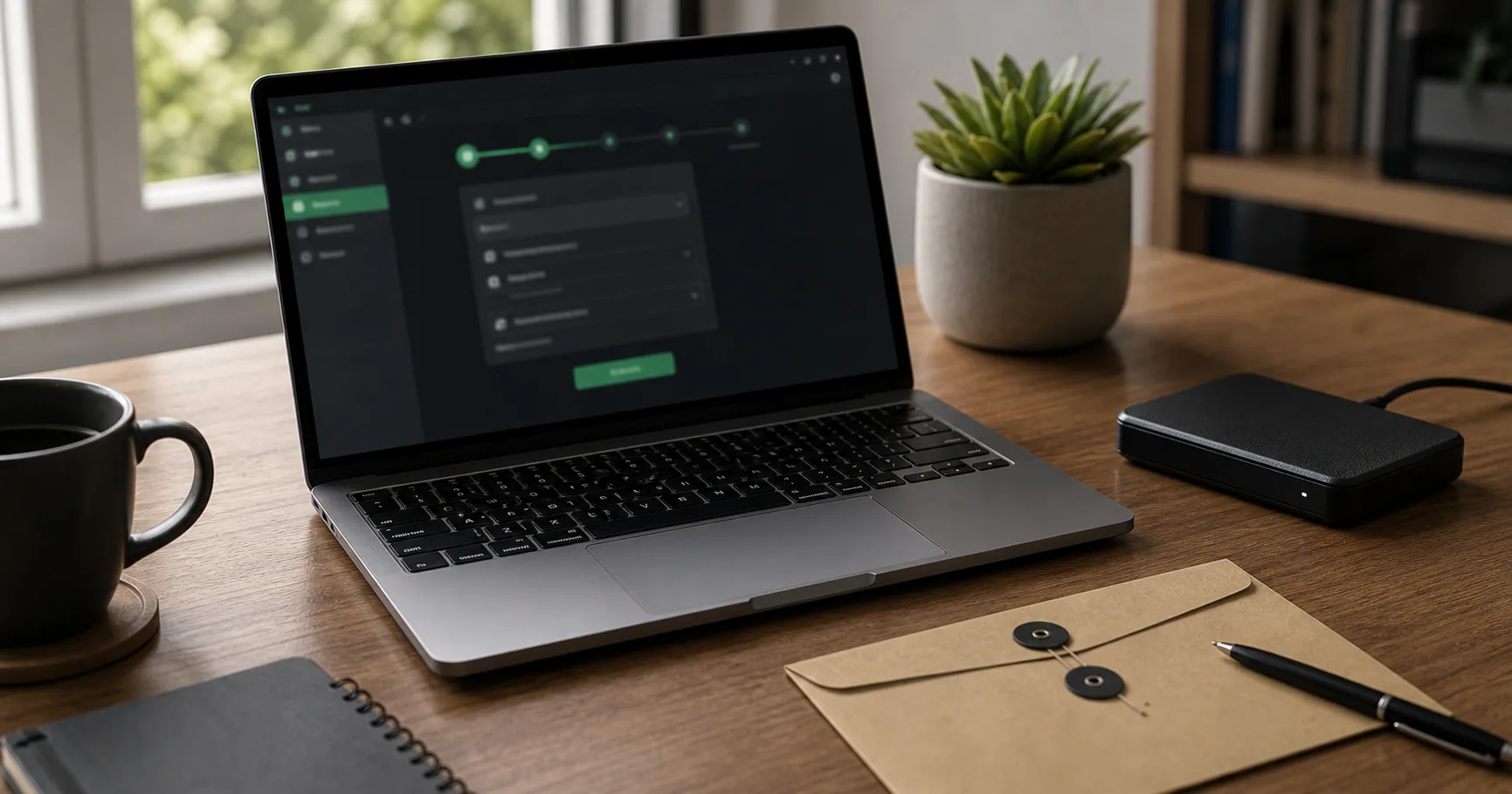
A no-account password manager for Mac lets you keep an encrypted vault without creating a remote service account. It can pair well with a local-first workflow, FileVault, and deliberate external backups.
The main tradeoff is that recovery and sync are not someone else's job.
When a no-account Mac password manager fits
This setup fits users who want a vault separate from Apple ID, browser sync, or another provider account. It works best when you mostly use trusted personal devices.
It is less convenient if you need automatic sync everywhere.
| Good fit | Less ideal |
|---|---|
| Main personal Mac | Many devices |
| Privacy priority | Managed recovery expected |
| External backup habit | No backup routine |
| Separate vault custody | Shared team workflows |
Prepare macOS for local vault storage
Keep macOS updated, protect the user account, and use FileVault where appropriate. Local vault security depends on the machine.
Avoid setting up the vault inside a shared user account.
- Install macOS updates.
- Use strong login and Touch ID if desired.
- Enable FileVault if appropriate.
- Review browser extensions.
- Keep the vault out of temporary folders.
Decide whether iCloud Drive is part of the workflow
A no-account password manager can still be accidentally stored in iCloud Drive if you choose that folder. The encrypted vault may remain protected, but the storage model is no longer fully local.
Make the choice intentionally.
| Location | Meaning |
|---|---|
| Local folder | Mac-only storage |
| External SSD | Offline backup |
| iCloud Drive | Cloud-synced encrypted file |
| Time Machine | Backup history |
Use browser autofill without splitting storage
If you migrate from Safari, Chrome, or Firefox saved passwords, decide whether the no-account manager becomes the source of truth.
Duplicate storage makes audits harder.
- Install official integration.
- Import carefully.
- Disable browser saving if appropriate.
- Review saved URLs.
- Use explicit fill.
Back up the Mac vault outside the Mac
The vault should survive Mac loss, repair, or replacement. Keep an encrypted backup on external storage and test restore.
Do not rely only on memory of where files live.
| Recovery item | Where |
|---|---|
| Encrypted vault | External drive |
| Keyfile | Separate protected copy |
| App name | Recovery note |
| Master password process | Offline material if needed |
Maintain a no-account Mac setup
Update the app, remove old exports, and refresh backups after major changes. Keep recovery instructions current.
A quiet routine beats a complicated plan.
- Update monthly.
- Back up after imports.
- Remove plaintext CSV files.
- Test restore quarterly.
- Review recovery note.
Conclusion
A no-account password manager for Mac can be a clean local-first setup when storage, browser integration, and backups are deliberate.
The privacy benefit comes with recovery responsibility, so test the backup before you need it.