
Can You Use a Password Manager on iPhone Without an Account?
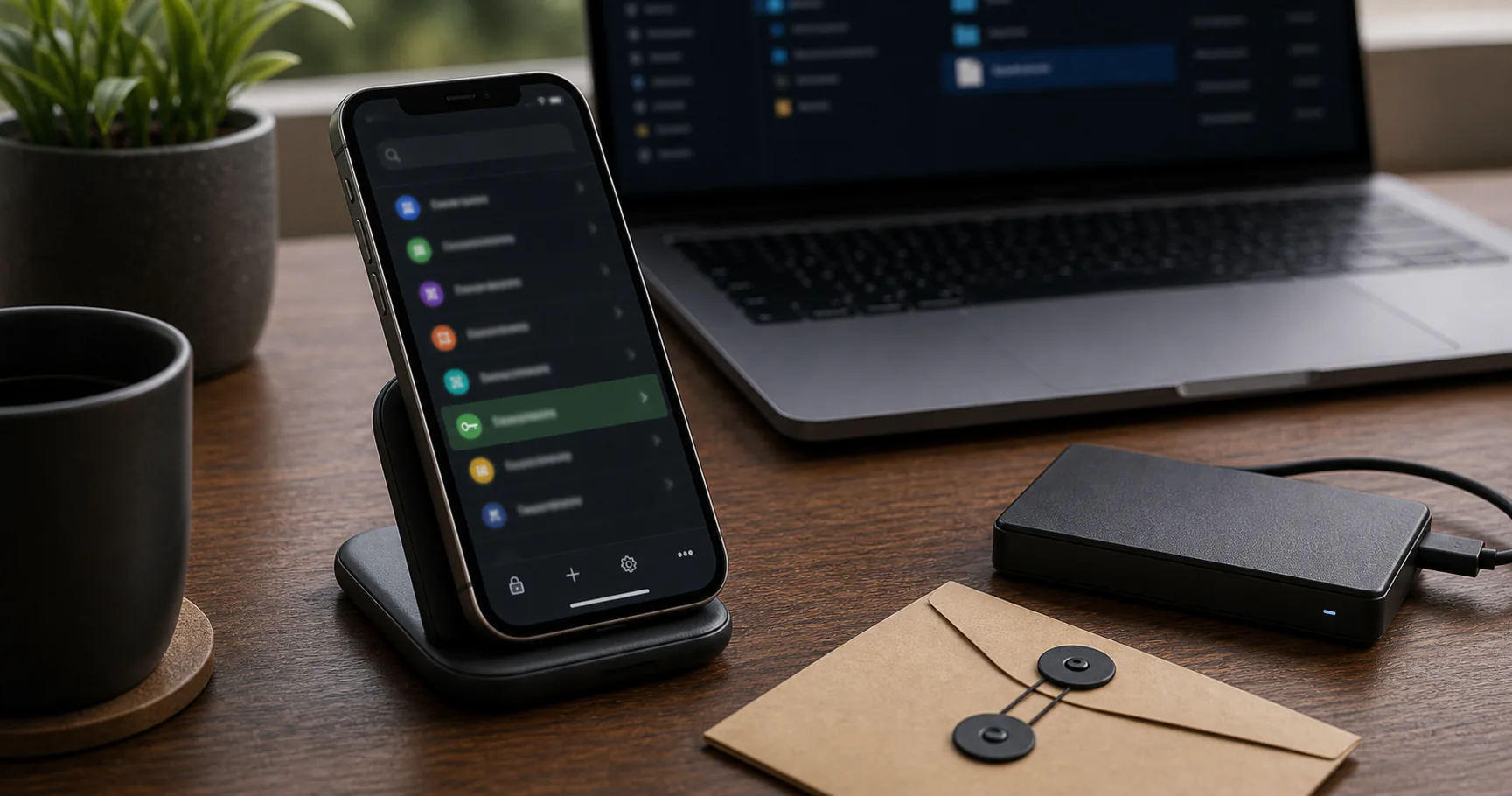
A password manager no account for iPhone is about using an encrypted password vault without making a remote account or automatic cloud sync the center of the workflow. For iPhone users, the appeal is clearer custody: you know where the vault lives and what has to be backed up.
The tradeoff is responsibility. Password Manager No Account For iPhone only works well when device security, imports, autofill, backups, and recovery are handled deliberately.
When Password Manager No Account For iPhone makes sense
This approach fits iPhone users who want local control, reduced provider dependency, and an understandable vault lifecycle. It is less ideal when automatic sync, managed sharing, or provider-assisted recovery matter more.
The decision should follow your real workflow, not just the appeal of the label.
| Good fit | Less ideal |
|---|---|
| Local custody is important | Hands-off sync is required |
| You can maintain backups | No one will test recovery |
| You use trusted devices | You often use shared devices |
| You want fewer accounts | You need managed team access |
Understand where the vault lives
The central question is storage. The encrypted vault may live in app storage, a local folder, a removable drive, or a sync folder you choose. Each option changes the threat model.
If a supposedly local vault is placed in a cloud-synced folder, that may still be acceptable, but it should be intentional.
| Storage choice | What it means |
|---|---|
| Local app storage | Simple device-centered use |
| Known local folder | Easy to back up intentionally |
| External drive | Separated portable copy |
| Cloud-synced folder | Convenient but no longer purely local |
Secure the device before trusting the vault
A local or no-account vault is decrypted on the device where you use it. Malware, unsafe browser extensions, weak device login, or careless screen sharing can expose secrets after unlock.
Device hygiene is not separate from password manager security.
- Install operating system and browser updates.
- Use disk encryption where available.
- Avoid unlocking on public or shared devices.
- Remove browser extensions you do not trust.
- Lock the vault when idle or screen sharing.
Use browser autofill with explicit control
Autofill makes unique passwords usable, but it should not be silent or overly broad. Prefer click-to-fill or command-based filling with strict domain matching.
Install only official browser integration and review imported URLs after migration.
| Autofill area | Safer default |
|---|---|
| Fill action | Require click or command |
| Domain matching | Keep strict |
| Extension source | Official only |
| Clipboard fallback | Clear quickly |
Import passwords without leaving plaintext behind
Many migrations create CSV or JSON exports. Those files can contain every login in readable form, so they should be temporary.
Import, verify a sample, then remove exports from downloads, trash, synced folders, and backup tools where possible.
- Export only when ready to import.
- Keep export files in a known temporary location.
- Verify important entries after import.
- Delete plaintext exports after verification.
- Disable duplicate browser saving if appropriate.
Build a backup and recovery plan
The strongest no-account password manager setup includes at least one encrypted backup outside the main device. Recovery should not depend on vague memory of where the vault lives.
If you use keyfiles, recovery planning must include them too.
| Recovery item | Guidance |
|---|---|
| Encrypted vault | Keep a separate copy |
| Master password | Use an offline recovery plan if needed |
| Keyfile | Keep protected duplicates |
| Restore process | Test before an emergency |
What Password Manager No Account For iPhone does not solve
Local custody reduces some provider and cloud risks, but it does not remove phishing, malware, weak master passwords, unsafe exports, or lost backups.
Good security comes from the whole workflow, not from one architectural choice.
- It does not protect an already compromised device.
- It does not make weak master passwords safe.
- It does not replace MFA for critical accounts.
- It does not remove the need for backups.
- It does not make plaintext exports harmless.
Password Manager No Account For iPhone checklist
Use this checklist before relying on the setup for critical accounts. Keep it simple enough to repeat.
- Create the vault on a trusted device.
- Use a long unique master passphrase.
- Configure conservative autofill.
- Import and clean up exports.
- Create an encrypted backup.
- Test restore.
- Review critical accounts periodically.
Conclusion
Password Manager No Account For iPhone can be a strong fit when you want control over password storage and can maintain the practical parts: device security, imports, autofill, backups, and recovery.
The safest version is not the most elaborate one. It is the one you understand, use consistently, and can restore when something goes wrong.