
Can a Local Password Manager Autofill Logins Safely?
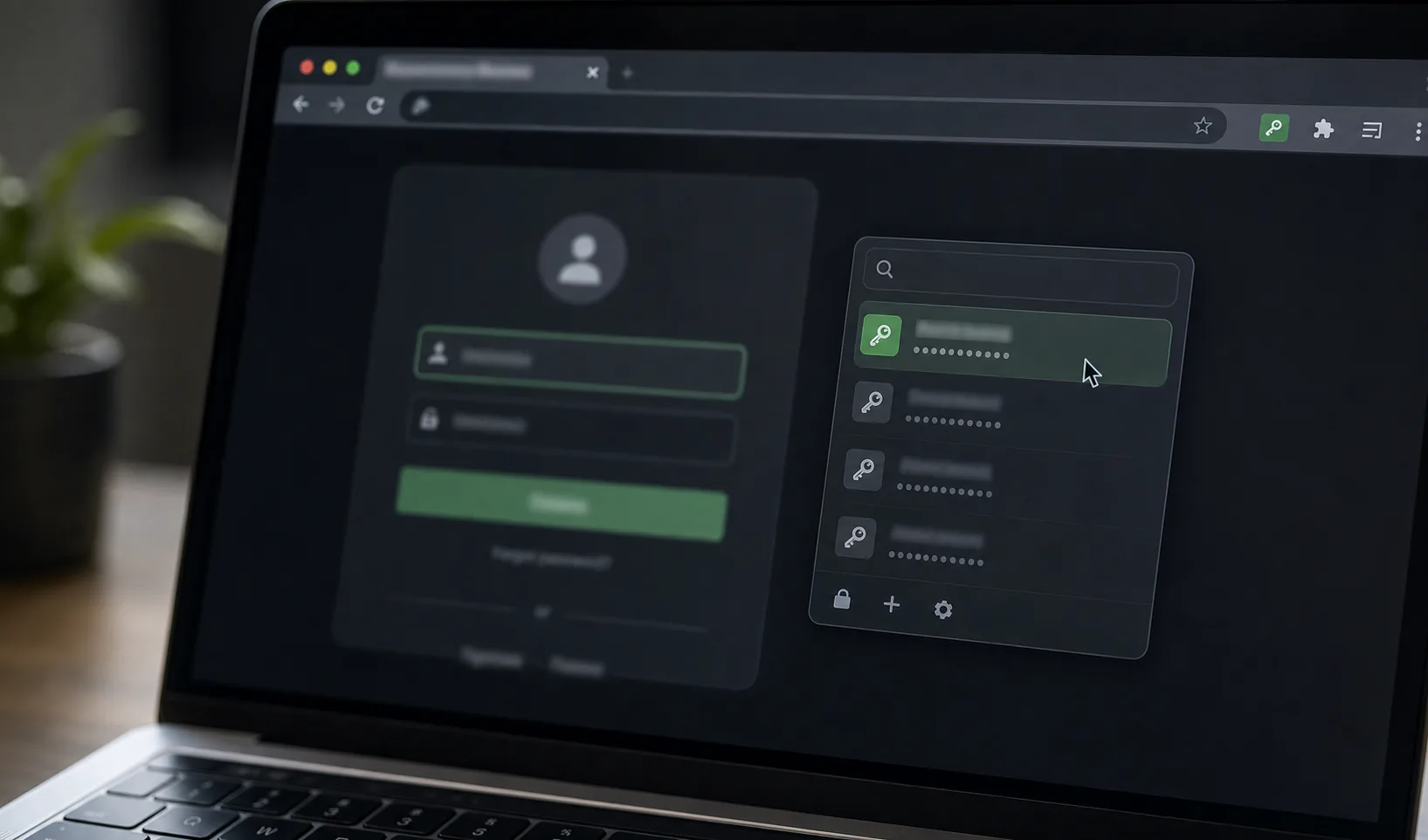
A local password manager with autofill tries to combine two goals: keeping the encrypted vault under local control and making daily logins fast enough that you actually use unique passwords everywhere.
Autofill is useful, but it deserves careful configuration. The browser is where phishing, malicious extensions, and confusing login flows often meet your password manager.
How autofill works in a local password manager
Autofill usually relies on a browser extension or app integration. The password manager checks the current website, finds matching entries, and fills credentials after the vault is unlocked and the user approves the action.
In a local-first setup, the vault data should remain encrypted locally until you unlock it. The extension should receive only what it needs to fill the selected page.
| Step | What should happen |
|---|---|
| Page detection | Extension identifies the website domain |
| Vault lookup | App finds matching entries |
| User action | You choose what to fill |
| Field fill | Username and password are inserted |
| Relock | Vault locks after inactivity |
Why autofill matters for password security
Autofill is not just convenience. It makes unique, strong passwords practical. If retrieving passwords is too slow, people often reuse easier passwords or let the browser save them casually.
Good autofill can also help with phishing resistance by showing credentials only for matching domains.
- Makes long unique passwords usable.
- Reduces typing mistakes.
- Helps detect wrong-domain login pages.
- Encourages regular use of the password manager.
- Reduces reliance on browser-stored passwords.
Explicit autofill is safer than silent autofill
Silent autofill can insert credentials into pages without enough user attention. Explicit fill requires a click, keyboard command, or menu choice before credentials are placed into fields.
For most local password manager users, explicit fill is the better default.
| Mode | Convenience | Security posture |
|---|---|---|
| Automatic fill on page load | Highest | Riskier on confusing pages |
| Click-to-fill | High | Better user control |
| Keyboard command | High for power users | Good control |
| Manual copy | Lower | Useful fallback with clipboard timeout |
Domain matching is the core autofill safety feature
A password manager should match credentials to the real website domain, not just a page that looks like a login form. This helps prevent filling credentials into lookalike or unrelated pages.
Users still need to pay attention because some attacks involve compromised legitimate sites or confusing subdomains.
| Page situation | Expected behavior |
|---|---|
| Exact saved domain | Show matching login |
| Lookalike domain | Do not show saved login |
| Subdomain | Follow configured matching rules |
| Embedded frame | Be conservative |
| Unknown page | Require manual review |
Browser extension trust matters
A local vault can still depend on browser extension code for autofill. Install only the official extension, keep it updated, and avoid running many extensions with broad page access.
Extensions share a sensitive environment. A messy browser profile weakens an otherwise careful local setup.
- Install from the official source.
- Review extension permissions.
- Remove extensions you no longer use.
- Keep the browser updated.
- Separate risky browsing from password manager use if needed.
Clipboard fallback should clear quickly
When autofill does not work, copying a password is a common fallback. The clipboard is convenient but exposed to other apps and accidental pasting.
Use a short clipboard timeout and avoid copying passwords while screen sharing or using untrusted apps.
| Clipboard behavior | Safer setting |
|---|---|
| Password copy | Clear after a short timeout |
| TOTP copy | Clear quickly |
| Clipboard history | Disable or exclude sensitive content if possible |
| Screen sharing | Avoid copying secrets during calls |
Mobile autofill has different tradeoffs
Mobile operating systems provide their own autofill frameworks. These can be safer than improvised copy-paste flows, but they depend on OS settings, device lock, and app integration quality.
A local password manager that works well on desktop may not offer the same mobile experience.
| Mobile factor | Why it matters |
|---|---|
| Device lock | Protects autofill approval |
| OS autofill settings | Controls which app can fill |
| App support | Determines reliability |
| Backup access | Affects recovery on new phone |
Autofill helps with phishing but does not solve it
Domain-aware autofill can be a useful warning sign: if the password manager does not offer credentials, the site may not match the saved login. But phishing can still use legitimate services, compromised pages, or social pressure.
Pair autofill with MFA or passkeys where available, especially for email, banking, developer accounts, and cloud storage.
- Check the domain before filling.
- Be suspicious if the expected login is missing.
- Use MFA for critical accounts.
- Do not override warnings casually.
- Keep recovery codes in the vault or another protected location.
What local-first autofill should avoid
A local-first password manager should avoid turning autofill into hidden cloud dependency. The browser integration should make it clear when the vault is locked, where matching happens, and what data is exposed to the extension.
Passary-style local-first design is strongest when autofill requires an unlocked local session and explicit user action.
| Avoid | Prefer |
|---|---|
| Always-on background access | Locked-by-default behavior |
| Unclear sync dependency | Clear local session boundary |
| Silent filling | Explicit fill action |
| Broad data exposure | Only selected entry data |
Recommended autofill settings for local password managers
The safest settings balance speed and control. You want autofill to be easy enough for daily use but deliberate enough to avoid careless filling.
Start conservative, then loosen only the settings that create real friction.
- Require click or keyboard command before filling.
- Use short auto-lock and clipboard timeouts.
- Keep domain matching strict.
- Install only official browser integration.
- Disable autofill on shared or untrusted devices.
- Review saved URLs after imports.
Conclusion
A local password manager with autofill can be both usable and careful when it keeps the vault local, matches domains conservatively, requires user action, and limits clipboard exposure.
Autofill should make strong unique passwords easier, not make filling invisible. Treat it as a controlled bridge between your encrypted vault and the browser.