
Local Password Manager Setup Guide
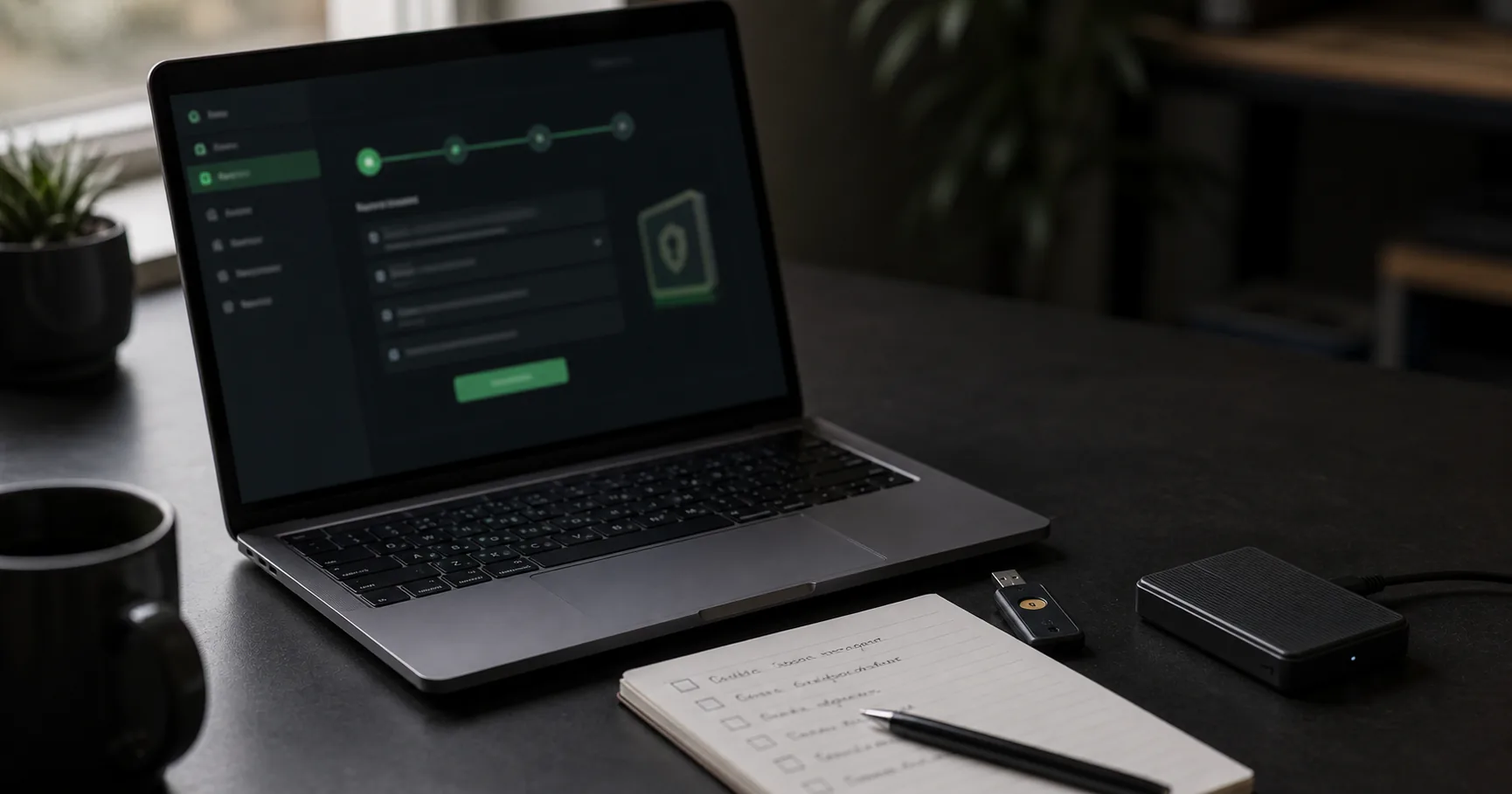
A local password manager stores your encrypted password vault on your own device instead of relying on a remote account as the center of the system. The basic setup is simple: choose a trustworthy local or offline-capable password manager, create an encrypted vault, protect it with a strong master password, import or add your logins, then build a backup routine you can actually maintain.
The important part is not just creating the vault. A local password manager setup only works well if you also think through device security, recovery, exports, backups, and how you will access the vault on more than one device. Local storage can reduce cloud exposure, but it also moves more responsibility to you. If you lose the only copy of your vault or forget the master password, there may be no provider-side reset path.
This guide walks through the setup process from first decision to long-term maintenance. It is written for people who want more control over password storage without turning password management into a full-time project.
What a local password manager setup needs to get right
A local password manager setup has four jobs: protect the vault file, protect the master password, protect the device where the vault is opened, and make recovery possible without weakening security. If one of those jobs is ignored, the setup can look secure on paper while still being fragile in daily use.
The main difference from a cloud-first password manager is custody. With a local setup, your encrypted vault usually lives on your device, a removable drive, or storage you choose. That can reduce exposure to provider breaches and unwanted cloud dependency, but it also means backup mistakes matter more.
| Setup area | What you need | What can go wrong |
|---|---|---|
| Vault encryption | A password manager that encrypts the vault before storage | Weak crypto, unclear design, or unmaintained software |
| Master password | A long, unique passphrase you can remember | Reuse, short passwords, hints, or forgotten passwords |
| Device security | Updated OS, screen lock, malware protection, disk encryption | Local malware, stolen laptop, shared account access |
| Backups | At least one encrypted backup outside the main device | Data loss, stale backups, unencrypted exports |
| Recovery process | A documented way to restore access | No backup, missing keyfile, unknown vault location |
The goal is not perfect security. The goal is a setup that reduces common password risks while staying usable enough that you keep using it.
Choosing the right local password manager model
Before installing anything, decide what kind of local password manager you actually want. Some tools are fully local by default. Others are cloud password managers with offline access. A few are local-first tools with optional sync or manual file movement.
For a privacy-first setup, look for clear answers to these questions:
- Where is the encrypted vault stored?
- Does the app require an account?
- Can you use it without cloud sync?
- What happens if the provider disappears?
- Can you export your data in a usable format?
- Does the project explain its encryption model?
- How are updates delivered?
- Does it support your operating systems and browsers?
| Model | Best for | Tradeoff |
|---|---|---|
| Fully local vault | Maximum control and minimal cloud exposure | You manage sync and backups |
| Local-first with optional sync | Users who want control plus flexibility | You must understand when data leaves the device |
| Cloud manager with offline access | Convenience across devices | Cloud account and provider infrastructure remain central |
| Portable vault on USB | Travel, recovery kits, or separated storage | Easy to lose if not backed up |
Local-first password managers such as Passary are designed around this custody model: encrypted vault data stays under user control, and the product should make the boundaries clear. That architecture can reduce server-side exposure, but it does not remove the need for strong device security and backups.
Preparing your device before creating a vault
Do the boring device work before you create or import passwords. A local password manager depends heavily on the safety of the device where the vault is opened. If malware can read your screen, clipboard, browser, or files while the vault is unlocked, local storage will not save you.
At minimum, prepare the device like this:
- Install operating system and browser updates.
- Turn on full-disk encryption if your OS supports it.
- Use a separate OS account that only you can access.
- Set a strong device password or biometric unlock.
- Remove browser extensions you do not trust.
- Avoid setting up the vault on a shared or unmanaged computer.
- Make sure your downloads folder does not contain old password exports.
| Device setting | Why it matters |
|---|---|
| OS updates | Reduces exposure to known local vulnerabilities |
| Disk encryption | Protects files if the device is stolen while powered off |
| Screen lock | Reduces casual access when the device is unattended |
| Extension review | Limits access by browser extensions with broad permissions |
| Malware protection | Helps catch common credential theft tools |
This does not make the device immune to compromise. It just gives the local password manager a safer place to operate.
Creating a strong master password
Your master password protects the vault encryption key, so it deserves more care than a normal website password. It should be long, unique, memorable, and never reused anywhere else. A good passphrase often works better than a short complex password because length gives you more practical strength while remaining easier to remember.
Current NIST guidance for centrally verified passwords emphasizes length, screening against compromised values, and avoiding arbitrary composition rules. For a local vault master password, the same spirit applies: prefer a long secret you can reliably type and remember over a short password decorated with predictable symbols.
| Weak choice | Better choice |
|---|---|
| A reused password | A master password used nowhere else |
| A short complex string | A longer passphrase with unrelated words |
| A password based on personal facts | A phrase not tied to public personal details |
| A written hint | A recovery note that does not reveal the password |
Do not store the master password inside the same vault it unlocks. If you need a written emergency note, keep it offline in a place you already use for important documents. Be careful with keyfiles too: they can strengthen a setup, but losing the keyfile may lock you out just as completely as forgetting the password.
Setting up your encrypted vault
Once the device and master password are ready, create the vault. The exact screens differ by tool, but the security decisions are usually similar. Choose a clear vault name, pick a storage location you understand, and confirm whether the app stores anything in browser storage, local files, or a portable vault file.
A typical local password manager setup looks like this:
- Open the password manager on a trusted device.
- Create a new vault.
- Enter the master password or passphrase.
- Add a keyfile only if you are ready to back it up safely.
- Save the encrypted vault in a known location.
- Lock and unlock the vault once to confirm the password works.
- Add one test entry before importing everything.
| Setup choice | Recommended default |
|---|---|
| Vault name | Something descriptive but not sensitive |
| Vault location | A folder you can back up intentionally |
| Keyfile | Optional; use only with a clear backup plan |
| Auto-lock | Enabled after inactivity |
| Clipboard timeout | Short timeout if clipboard copy is supported |
| Export format | Know how to export before you need it |
After setup, lock the vault and reopen it. This small test catches typos, password memory mistakes, and confusion about where the vault file was stored.
Importing existing passwords safely
Most people do not start with an empty vault. They import saved passwords from a browser, a CSV file, or another password manager. This is the riskiest part of the setup because exports are often unencrypted while they sit on disk.
Treat any password export as sensitive until you have securely removed it. A CSV exported from a browser or password manager may contain website URLs, usernames, passwords, notes, and sometimes other private fields in plain text.
| Import source | Common format | Main risk | Safer handling |
|---|---|---|---|
| Chrome or Google Password Manager | CSV | Plaintext export file | Import immediately, then delete securely where possible |
| Bitwarden | JSON or CSV | Export may include full vault data | Prefer encrypted export if supported for your workflow |
| KeePass | KDBX or exported CSV/XML | Export formats vary in sensitivity | Keep original KDBX safe; avoid unnecessary plaintext exports |
| 1Password or other cloud managers | CSV or proprietary export | Local temporary files | Follow vendor export docs and clean up after import |
After importing, check a small sample before deleting the export. Confirm website URLs, usernames, passwords, notes, folders, and any TOTP or custom fields that matter to you. Then remove the temporary export from downloads, desktop, trash, cloud-synced folders, and backup folders if it landed there.
Organizing entries after setup
A local password manager becomes more useful when entries are organized by risk and context instead of just alphabetically. The goal is to make important accounts easy to find and easy to audit later.
Start with simple groups:
- Email and identity accounts
- Banking and payment accounts
- Work and developer accounts
- Social media accounts
- Shopping accounts
- Household and family accounts
- Low-risk accounts
- Archived or inactive accounts
| Organization method | Use it for | Avoid |
|---|---|---|
| Folders | Broad account categories | Too many nested folders |
| Tags | Cross-cutting labels like shared, critical, or old | Vague tags you will not reuse |
| Favorites | Accounts you open often | Marking everything as important |
| Notes | Recovery details that belong with the entry | Storing unencrypted secrets outside the vault |
During cleanup, look for duplicates, reused passwords, weak passwords, stale URLs, and accounts you no longer use. Do not try to fix every account in one sitting. Start with email, banking, password manager, cloud storage, and identity accounts first.
Backing up a local password vault
Backups are the part of a local password manager setup that people most often underestimate. A local vault reduces reliance on a provider, but it also means you need a way to recover from laptop theft, disk failure, accidental deletion, or a corrupted file.
A practical backup plan should include at least one backup outside the main device. For many people, that means an encrypted external drive, a USB drive stored safely, or a secondary device. If you use a cloud storage folder for convenience, remember that you are reintroducing cloud exposure for the encrypted vault file, even if the provider cannot read the contents without the key.
| Backup option | Good use | Main caution |
|---|---|---|
| Encrypted external drive | Home recovery copy | Must be updated regularly |
| USB drive | Portable emergency copy | Easy to lose or damage |
| Secondary computer | Fast recovery | Device must be secured too |
| Cloud storage folder | Convenience and availability | Changes the threat model |
| Printed recovery note | Master password backup | Must not be exposed casually |
Test recovery before you need it. Copy the vault to another trusted device or temporary location, unlock it, confirm entries are present, then delete the test copy if it is no longer needed. A backup you have never restored is only a hope.
Reducing local device and autofill risks
A local password manager still interacts with your browser, clipboard, operating system, and screen. Those are useful integration points, but they can also create exposure if used carelessly.
Autofill is convenient, especially for daily logins, but it should be configured conservatively. Prefer tools that require an explicit user action before filling credentials. Be cautious with pages that look like login forms but are not the real site. Password managers can reduce phishing risk when they match credentials to the correct domain, but users still need to pay attention to URLs and browser warnings.
| Feature | Safer setup |
|---|---|
| Autofill | Require click or command before filling |
| Clipboard copy | Clear clipboard after a short timeout |
| Browser extension | Install only the official extension from a trusted source |
| Auto-lock | Lock quickly after inactivity or sleep |
| Shared devices | Avoid unlocking the vault on them |
| Screen sharing | Lock the vault before calls or recordings |
The biggest local risks are malware, unsafe browser extensions, unlocked sessions, and careless clipboard use. A local vault can limit cloud-side exposure, but it cannot protect secrets from everything running on a compromised device.
Maintaining your setup over time
The best local password manager setup is one you maintain calmly. You do not need a dramatic security ritual every week. You need a repeatable routine that catches weak spots before they become a problem.
Use a simple monthly or quarterly checklist:
- Confirm the app and browser extension are up to date.
- Back up the vault and verify the backup exists.
- Review critical accounts for reused or weak passwords.
- Remove old plaintext exports from downloads and cloud folders.
- Check whether important accounts have MFA or passkeys available.
- Update recovery codes stored in the vault if accounts rotate them.
- Confirm you still know where the vault and recovery materials are.
| Maintenance task | Suggested frequency |
|---|---|
| App and extension updates | Monthly |
| Vault backup | Monthly or after major changes |
| Restore test | Quarterly |
| Critical account review | Quarterly |
| Full vault cleanup | Twice a year |
| Recovery material check | Twice a year |
If your setup feels too complicated to maintain, simplify it. A slightly less elaborate system that you actually use is usually safer than a perfect system you avoid.
Conclusion
A local password manager setup gives you more control over where your passwords live, how they are backed up, and which services can access your encrypted vault. That control is valuable, especially if you want to reduce cloud dependency and keep password storage understandable.
The tradeoff is responsibility. You need a strong master password, a secure device, careful import handling, conservative autofill settings, and a backup plan that has been tested at least once. Local-first security is strongest when it is paired with ordinary habits that prevent data loss and local compromise.
Start small: create the vault, add or import your most important accounts, clean up plaintext exports, and make your first backup. Once that foundation works, you can improve organization, add recovery documentation, and refine your setup over time.