
How to Back Up a Local Password Manager Without Losing Access
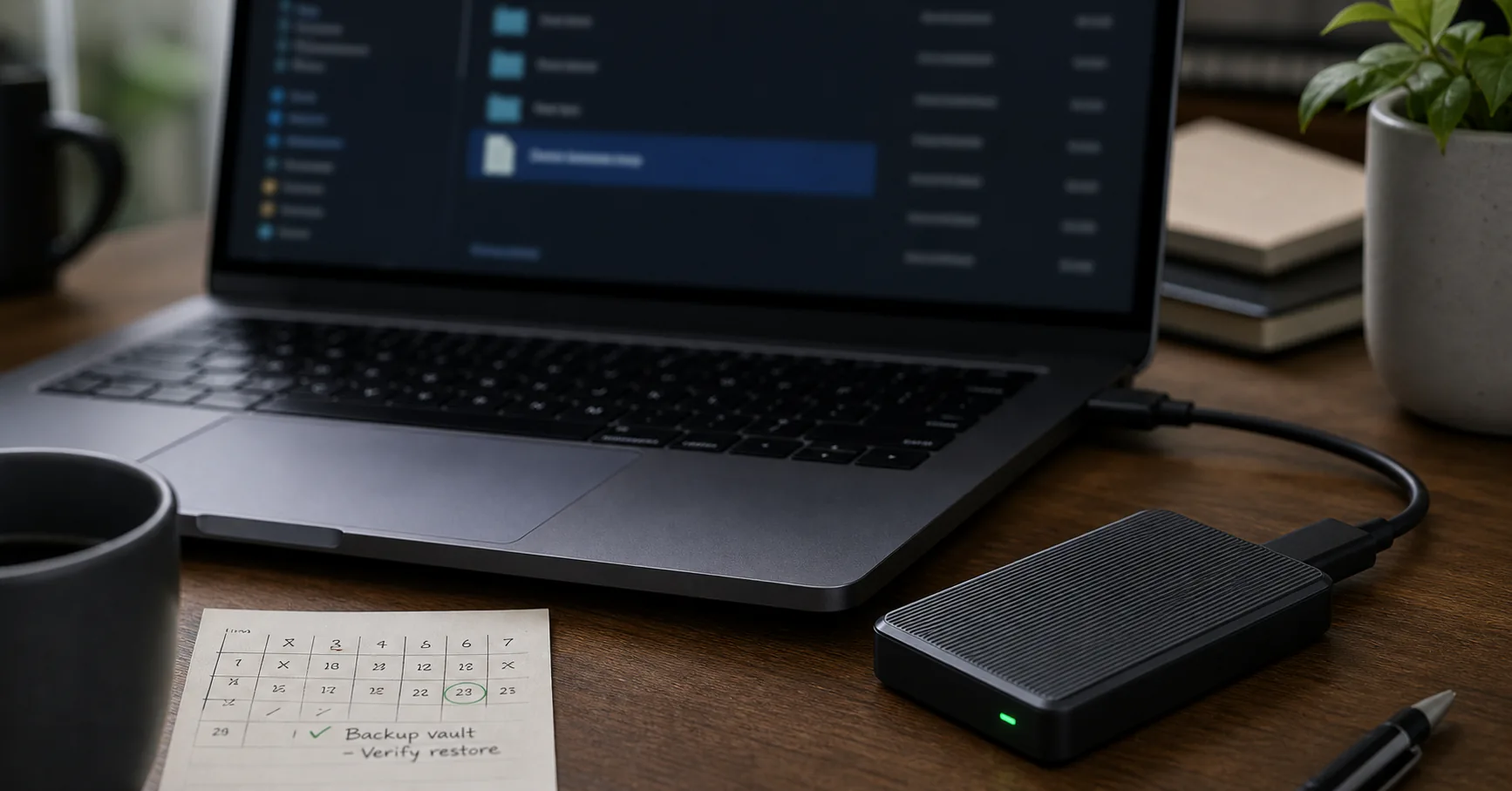
A local password manager backup is a protected copy of your encrypted vault that can restore access if your main device is lost, damaged, stolen, or wiped. The safest backup plan keeps the vault encrypted, stores copies in more than one place, and includes a restore test so you know the backup actually works.
Local-first password storage reduces reliance on a provider, but it also makes recovery your responsibility. A backup plan should be simple enough to repeat after important vault changes and careful enough that it does not create plaintext password files in random folders.
What a local password manager backup protects against
A backup protects against data loss, not every security problem. It helps when a laptop dies, a phone is replaced, a vault file is deleted, or a storage drive fails. It does not protect passwords while the vault is unlocked on a compromised device.
That distinction matters because backup planning can otherwise drift into false comfort. You need both recovery planning and device hygiene.
| Scenario | Backup helps? | What else matters |
|---|---|---|
| Laptop failure | Yes | Recent copy on another device or drive |
| Forgotten master password | No | Offline recovery note or memory plan |
| Malware while unlocked | No | Device security and safe browser habits |
| Accidental deletion | Yes | Versioned or separate backup copy |
| Stolen device | Sometimes | Disk encryption and remote account cleanup |
The three rules of password vault backups
A good password vault backup is encrypted, redundant, and tested. If a backup is unencrypted, it becomes a second place where every password can leak. If there is only one copy, it is fragile. If it has never been restored, it is unproven.
You do not need a complicated enterprise process. You need a small routine that you can repeat without guessing.
- Keep the vault encrypted at rest.
- Keep at least one copy outside the main device.
- Test restore before you trust the backup.
- Avoid leaving CSV or JSON exports in downloads or cloud folders.
- Update backups after major imports or password cleanup sessions.
Choosing where to store an encrypted vault backup
Backup location changes the threat model. An external drive gives you physical control. A secondary device gives fast recovery. A cloud folder improves availability but reintroduces provider exposure for the encrypted file.
The right choice depends on whether you value offline control, convenience, travel recovery, or disaster recovery most.
| Location | Strength | Caution |
|---|---|---|
| Encrypted external drive | Good offline recovery | Must be updated manually |
| USB drive | Portable and simple | Easy to lose |
| Secondary computer | Fast restore test | Needs the same device hygiene |
| Cloud storage | Available after hardware loss | Changes privacy assumptions |
| Network attached storage | Useful at home or office | Needs access controls and updates |
Avoid plaintext password exports during backup
A password manager export is not always the same as a vault backup. Browser CSV exports and some password manager exports may be plaintext files containing URLs, usernames, passwords, notes, and other sensitive fields.
Use the encrypted vault file as the normal backup unit whenever possible. If you must export plaintext for migration, treat the file as temporary hazardous material.
- Do not keep plaintext exports as long-term backups.
- Import or verify the export immediately.
- Delete exports from downloads, desktop, trash, and synced folders.
- Check whether backup software copied the export elsewhere.
- Prefer encrypted export formats when your tool supports them.
How often to back up a local password vault
Backup frequency should follow vault activity. If you add or change passwords every day, a monthly backup may be too stale. If the vault changes rarely, backing up after each major change can be enough.
The easiest rule is event-based: back up after imports, account cleanup, master password changes, keyfile changes, or major password rotations.
| Vault activity | Suggested backup rhythm |
|---|---|
| Daily changes | Weekly or automated encrypted copy |
| Occasional changes | After each meaningful update |
| Major import | Immediately after verification |
| Keyfile added or changed | Back up vault and keyfile plan together |
| Critical account cleanup | Back up after the session |
Testing a restore without creating new risk
A backup is only trustworthy after a restore test. You do not need to move your real workflow to another device. You only need to confirm that the vault file opens, entries are present, and the backup copy is recent enough.
Use a trusted device, avoid shared computers, and delete temporary test copies when finished.
- Copy the encrypted vault backup to a trusted test location.
- Open it with the password manager.
- Unlock it with the expected master password and keyfile if used.
- Confirm several important entries are present.
- Lock the vault and remove temporary copies.
Backing up vaults that use keyfiles
A keyfile can add a second local secret to vault unlocking, but it also makes recovery stricter. If the vault requires both master password and keyfile, backing up only the vault is not enough.
Store keyfiles with more care than ordinary documents. Losing every keyfile copy can make recovery impossible even if the master password is correct.
| Item | Backup guidance |
|---|---|
| Vault file | Keep encrypted copies in multiple locations |
| Keyfile | Keep separate protected copies |
| Master password | Use an offline recovery plan |
| Instructions | Document enough to restore without exposing secrets |
Using cloud storage for encrypted vault backups
Cloud storage can be reasonable if the vault is strongly encrypted before upload and you understand the tradeoff. The provider may not be able to decrypt the vault, but it can still store metadata, account activity, and file versions.
For people who need recovery after home hardware loss, cloud storage can be part of a backup plan. It should not be treated as invisible.
| Benefit | Risk to consider |
|---|---|
| Available after device loss | Cloud account takeover risk |
| Version history | Old sensitive copies persist |
| Easy sync | Accidental overwrite can sync too |
| Remote access | Provider metadata exposure |
Writing a recovery note that does not expose the vault
A recovery note should help you find and restore the backup without revealing the master password to anyone who sees the note casually. Keep it boring, practical, and offline.
The note can list where backups are stored, what app opens the vault, and what extra material is required. It should not contain every secret in plain language.
- Name the password manager used.
- List backup locations in plain terms.
- Mention whether a keyfile is required.
- Describe who should access it in an emergency.
- Avoid writing the master password next to the vault location.
A simple maintenance routine for local vault backups
Backup plans fail when they depend on memory alone. Put a recurring reminder on your calendar or tie backups to events you already notice, such as monthly account review or software updates.
Keep the routine small. The best backup process is the one you repeat.
| Task | Frequency |
|---|---|
| Check app updates | Monthly |
| Create fresh encrypted backup | Monthly or after major changes |
| Restore test | Quarterly |
| Remove plaintext exports | After every import or migration |
| Review recovery note | Twice a year |
Conclusion
A local password manager backup plan should protect against data loss without creating new places for passwords to leak. Keep the encrypted vault as the normal backup unit, avoid long-term plaintext exports, store more than one copy, and test restore before you need it.
Local-first security works best when the recovery process is calm and repeatable. A small, tested backup routine is far better than a complicated plan you never run.